Manage Item Media
In the Media tab, you manage all images, documents, and other files for an item. The other tabs at the top are covered in separate chapters.
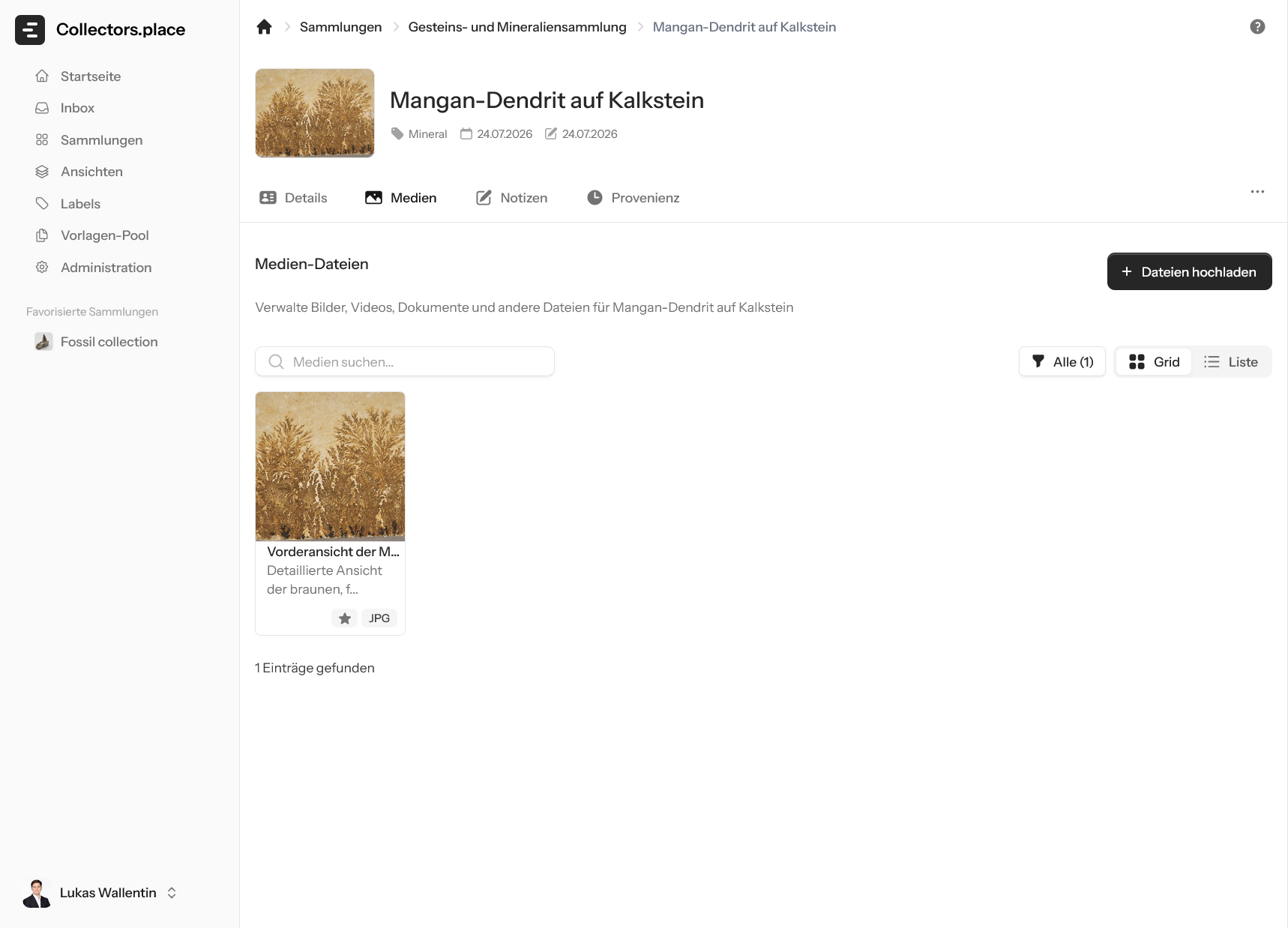
The first image shows the media overview of the item. Here you can see the cover image, the available files, and the main actions for the media area.
Uploading files
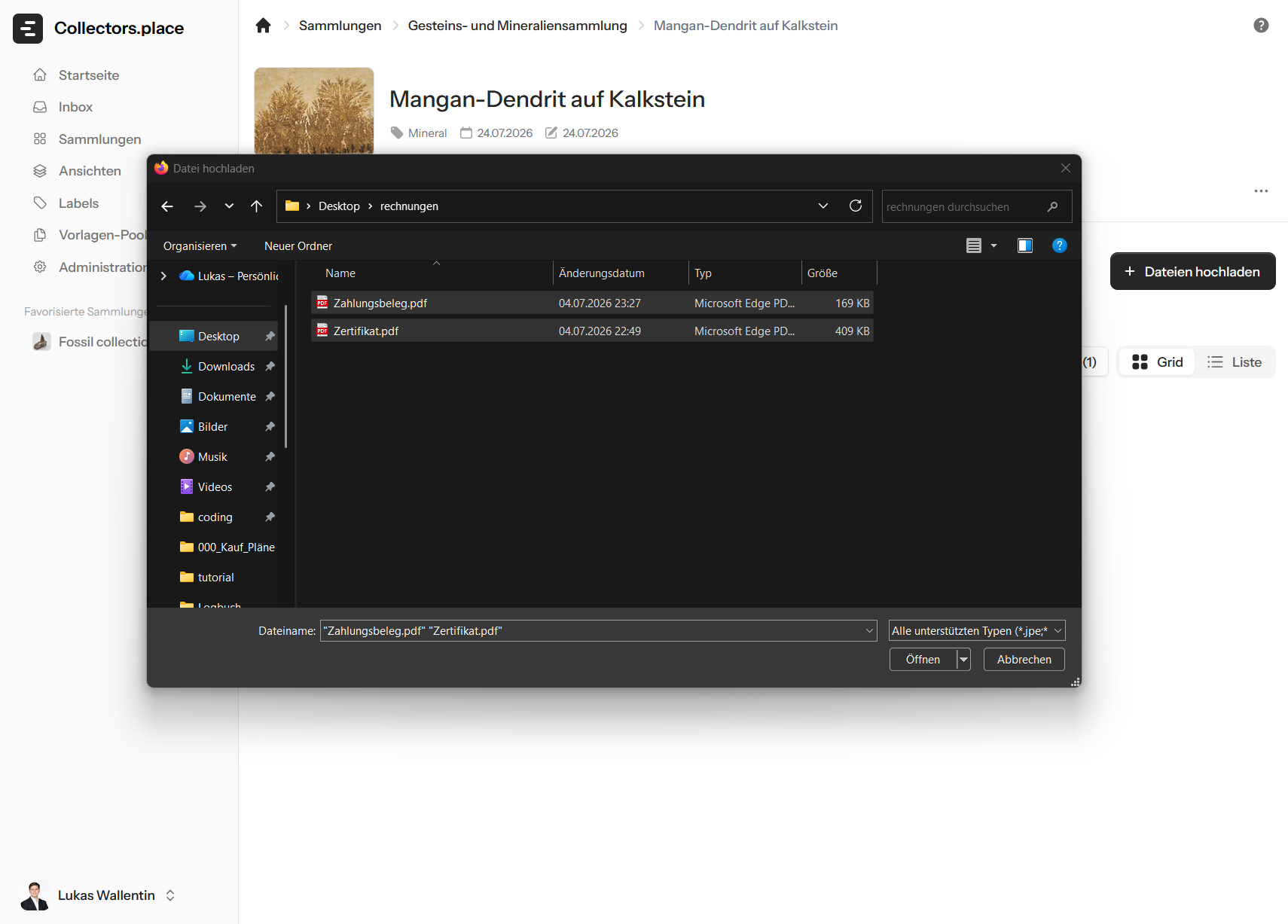
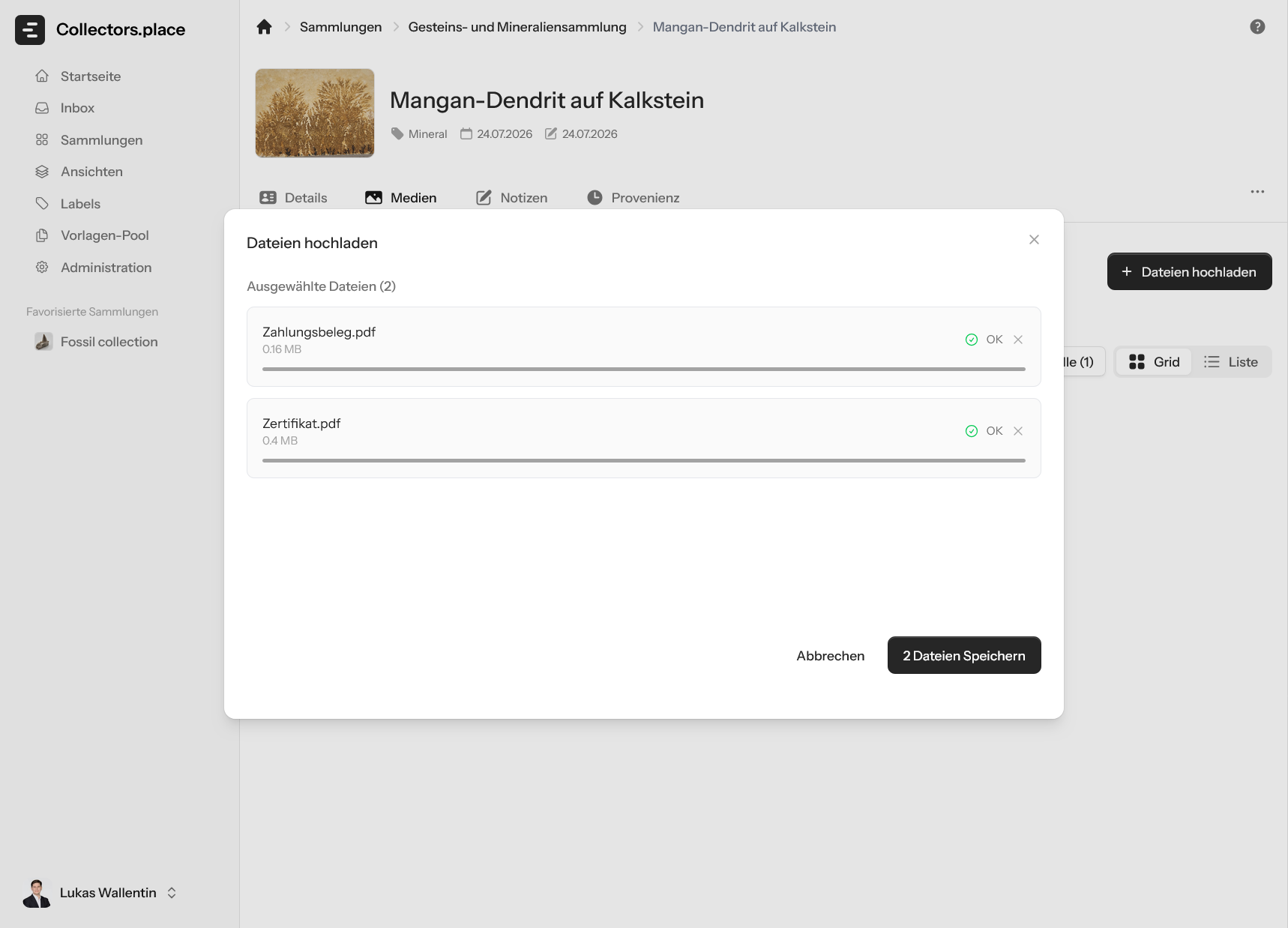
Use Upload files to add new media. In the screenshot below, several files have already been selected before they are saved.
After the files are selected, Collectors.place shows the upload inside the dialog. That gives you one last chance to check everything before saving.
Once saved, the new files appear directly in the media list. From there you can manage images, PDFs, and other file types together.
Preview and editing
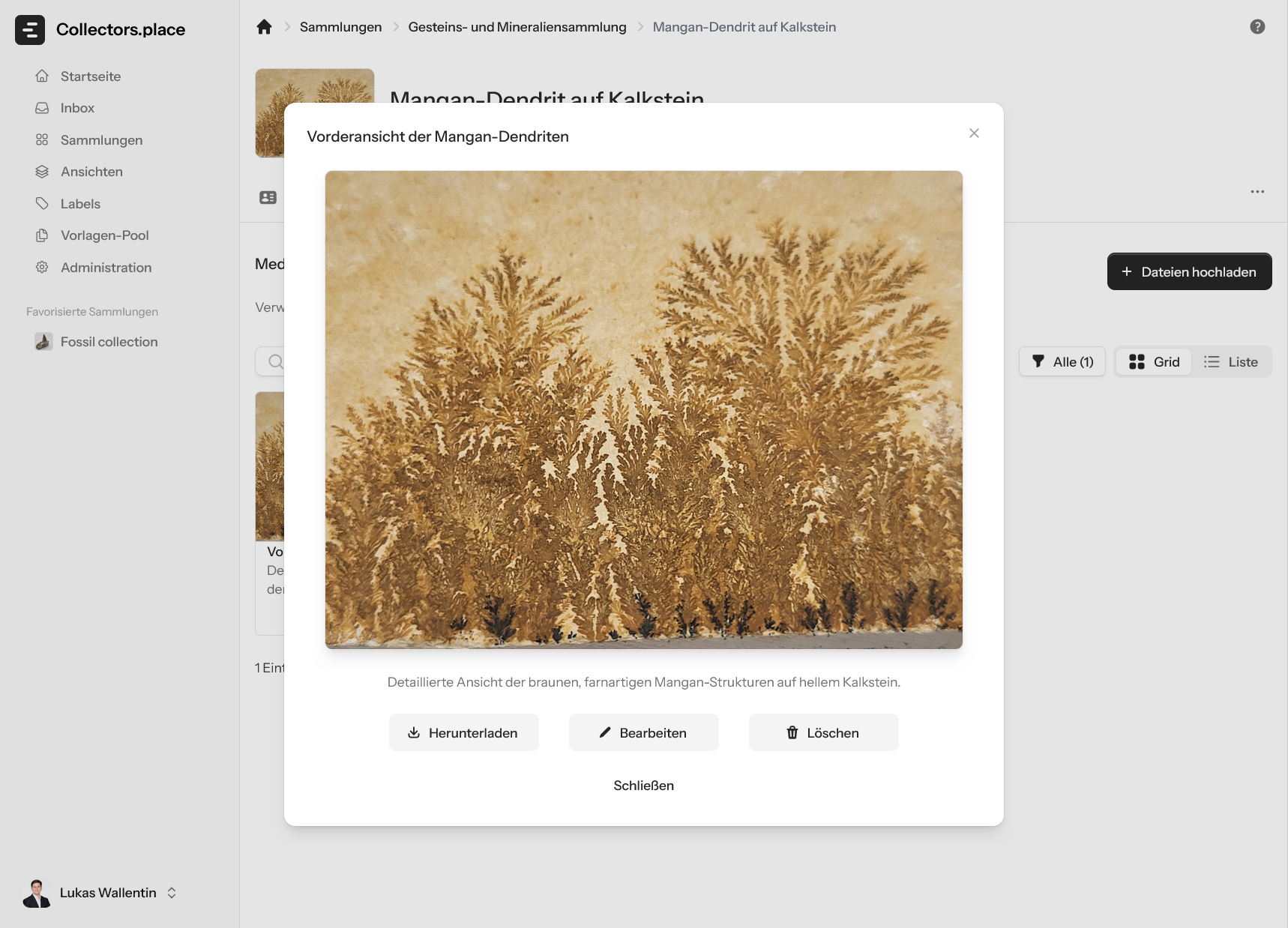
Clicking a file opens the preview. There you can view it in larger size, download it, edit it, or delete it.
Use Edit to open the dialog for title, description, tags, and visibility.
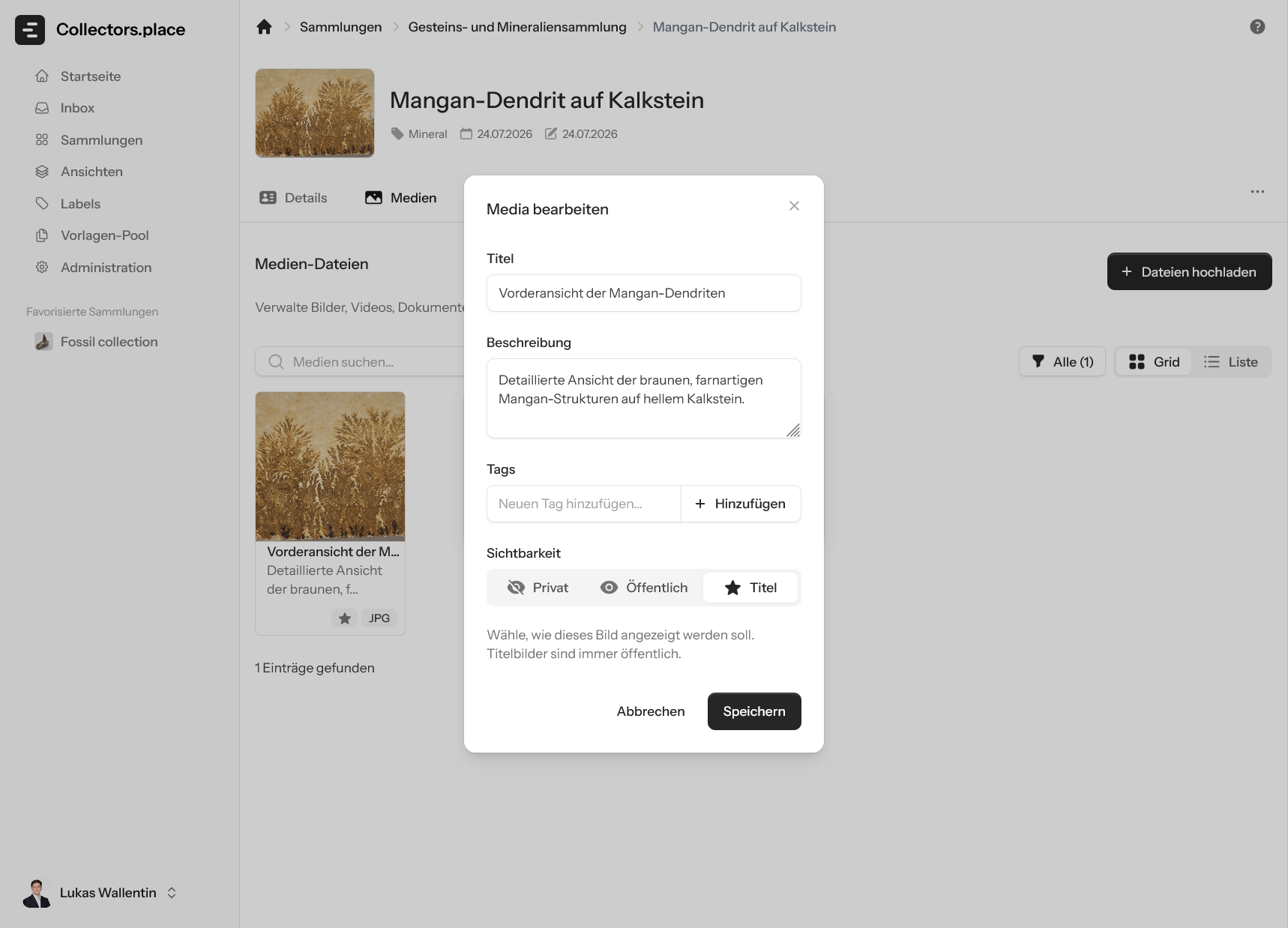
In that dialog, you can also decide whether an image should be used as the cover image.
Views and filters
Depending on how many files you have, you can switch between grid and list view. You can also filter media by type, for example by images or documents.
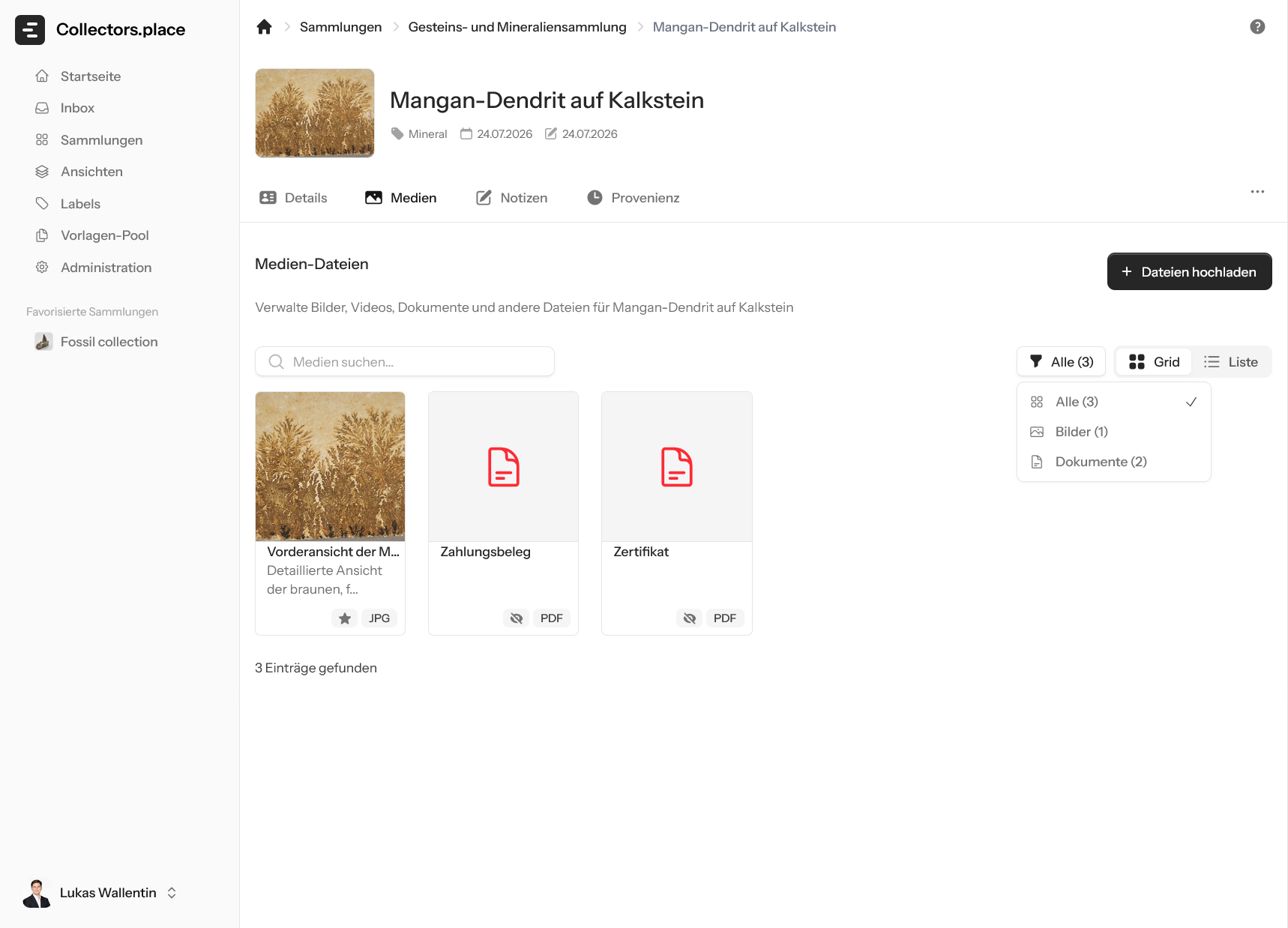
The list view is especially useful when you want to compare many files at once.
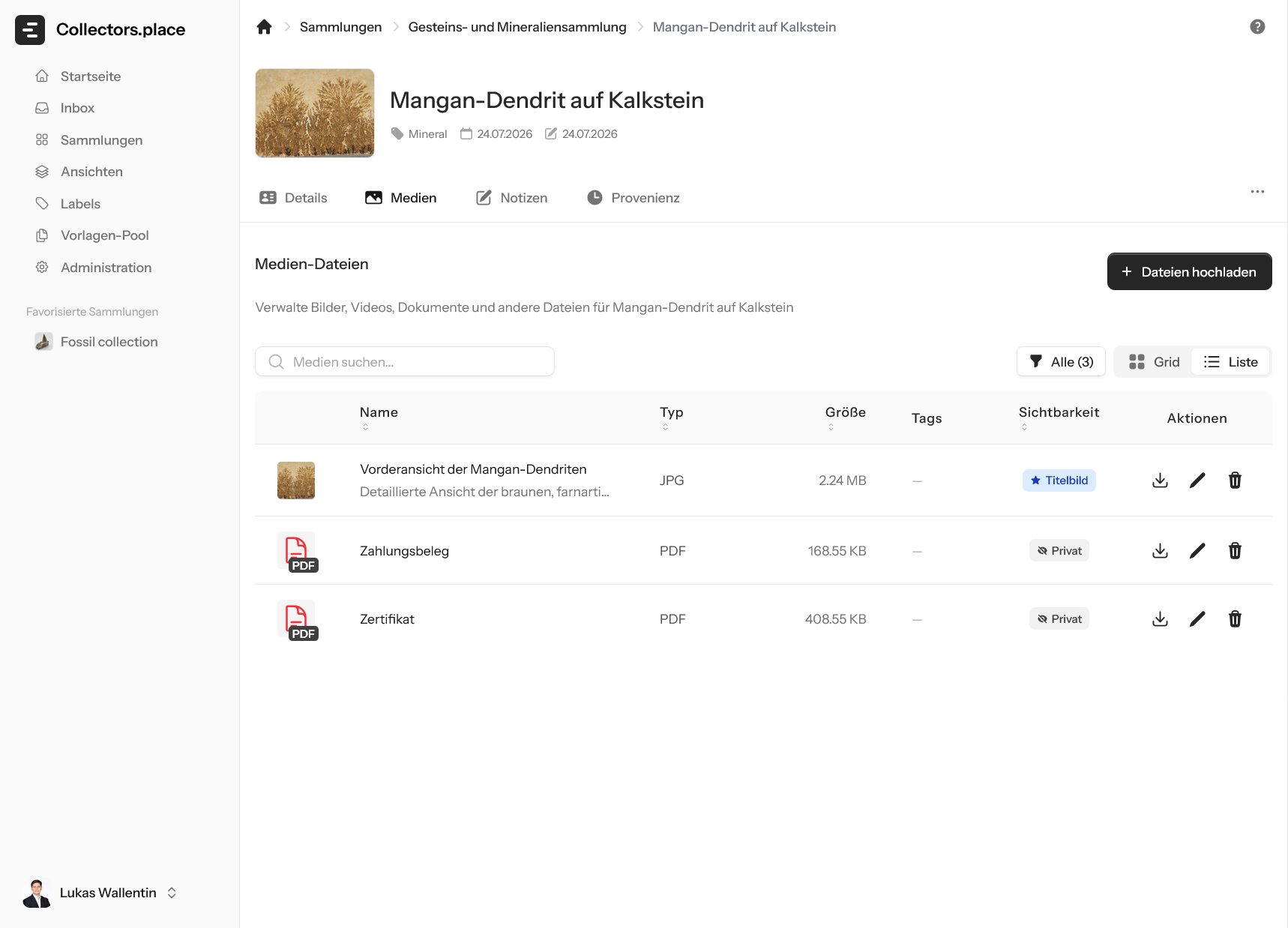
That way, you keep a clear overview even as the media library grows.
Key takeaways
When working in the Media tab, focus on three things:
- Upload and name files clearly
- Use preview and editing to maintain media properly
- Switch between grid, list, and filters when you have many files
Notes will be explained in the next chapter.