Manage Labels
Labels are short markers that help you group items and find them again quickly. In this area you manage existing labels, adjust colours and descriptions, and search for specific entries when needed.
The overview
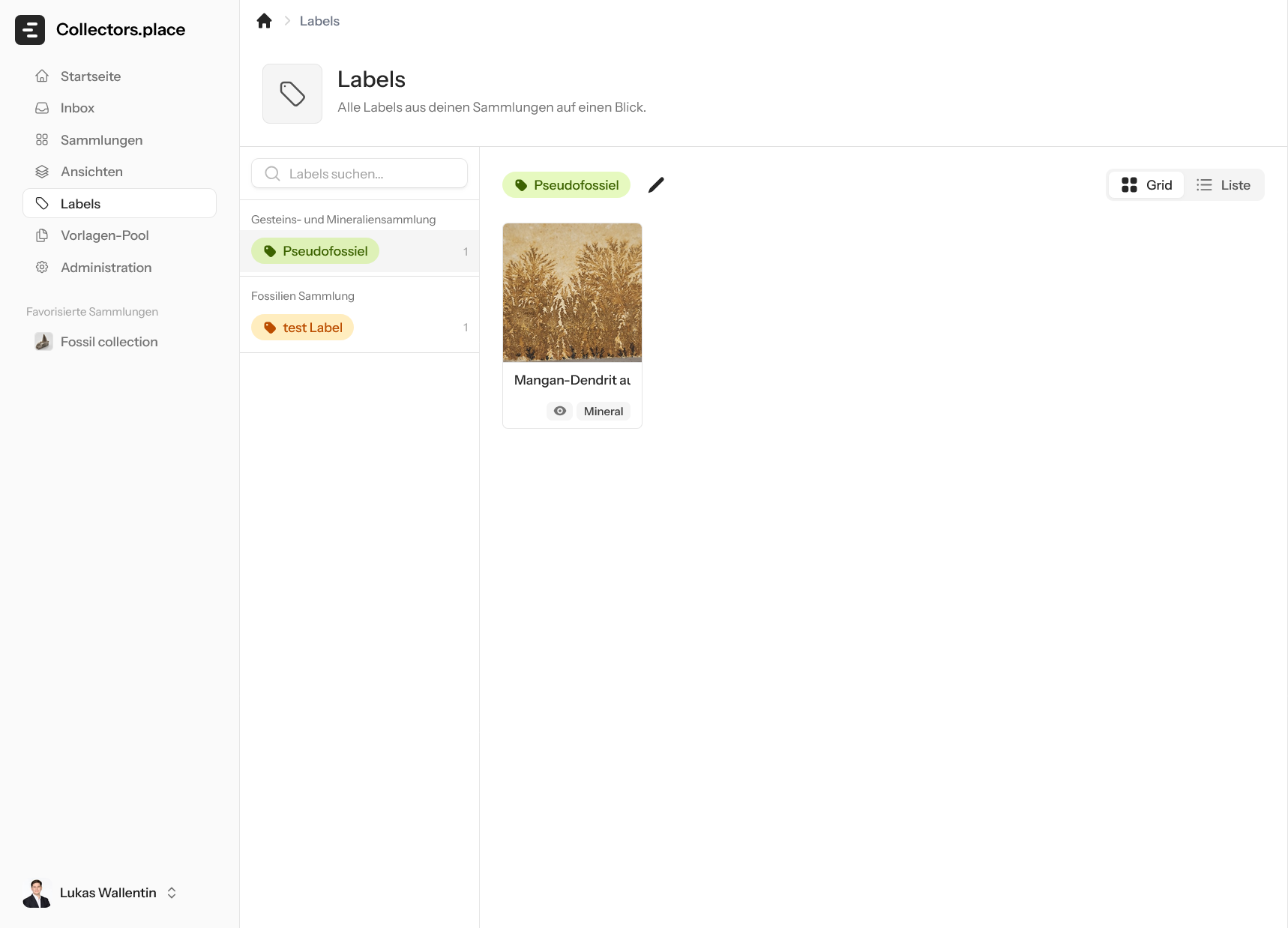
On the left you see the available labels from your collections. The overview lets you immediately recognise which collection a label is used in and how often it is assigned. On the right, the selected label is shown together with its assigned items.
Editing a label
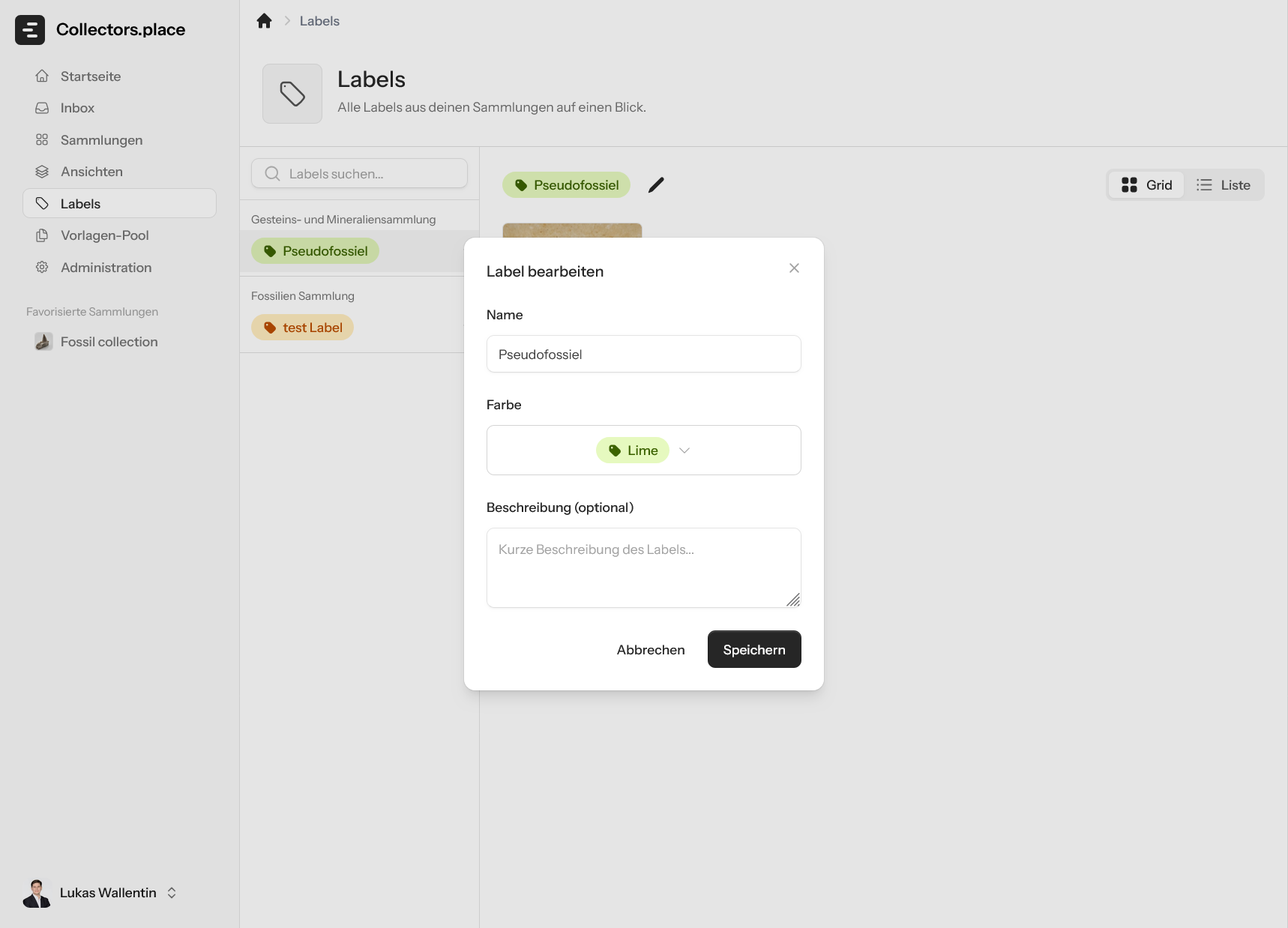
Use the pencil icon to open the edit dialog. There you can change the name, add a description, and adjust the colour. That keeps a label understandable even when several terms are very similar.
Choosing a colour
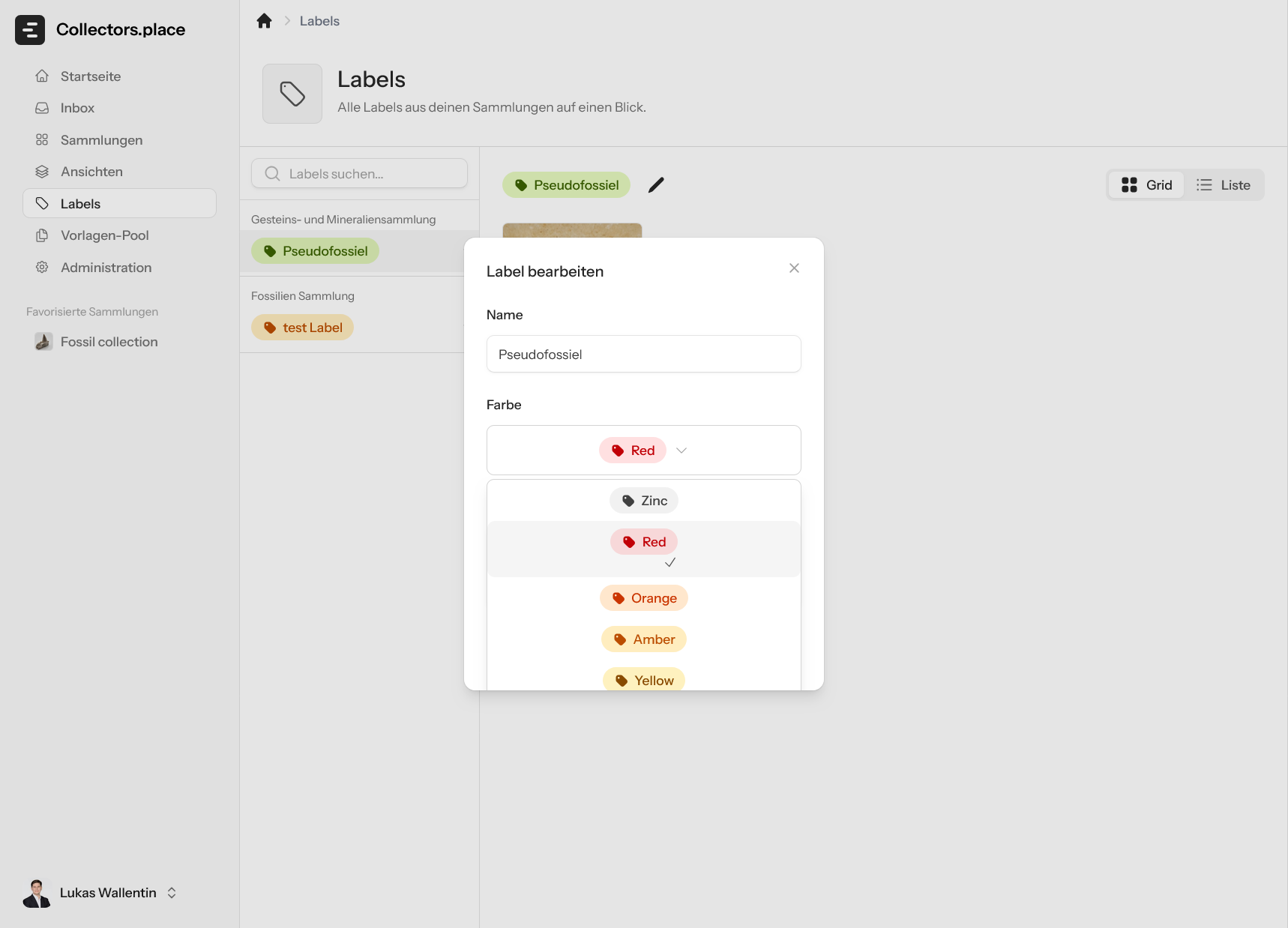
Colour selection helps you distinguish labels visually. Depending on the topic, you can highlight warnings, statuses, or thematic groups with different colours.
Saving changes
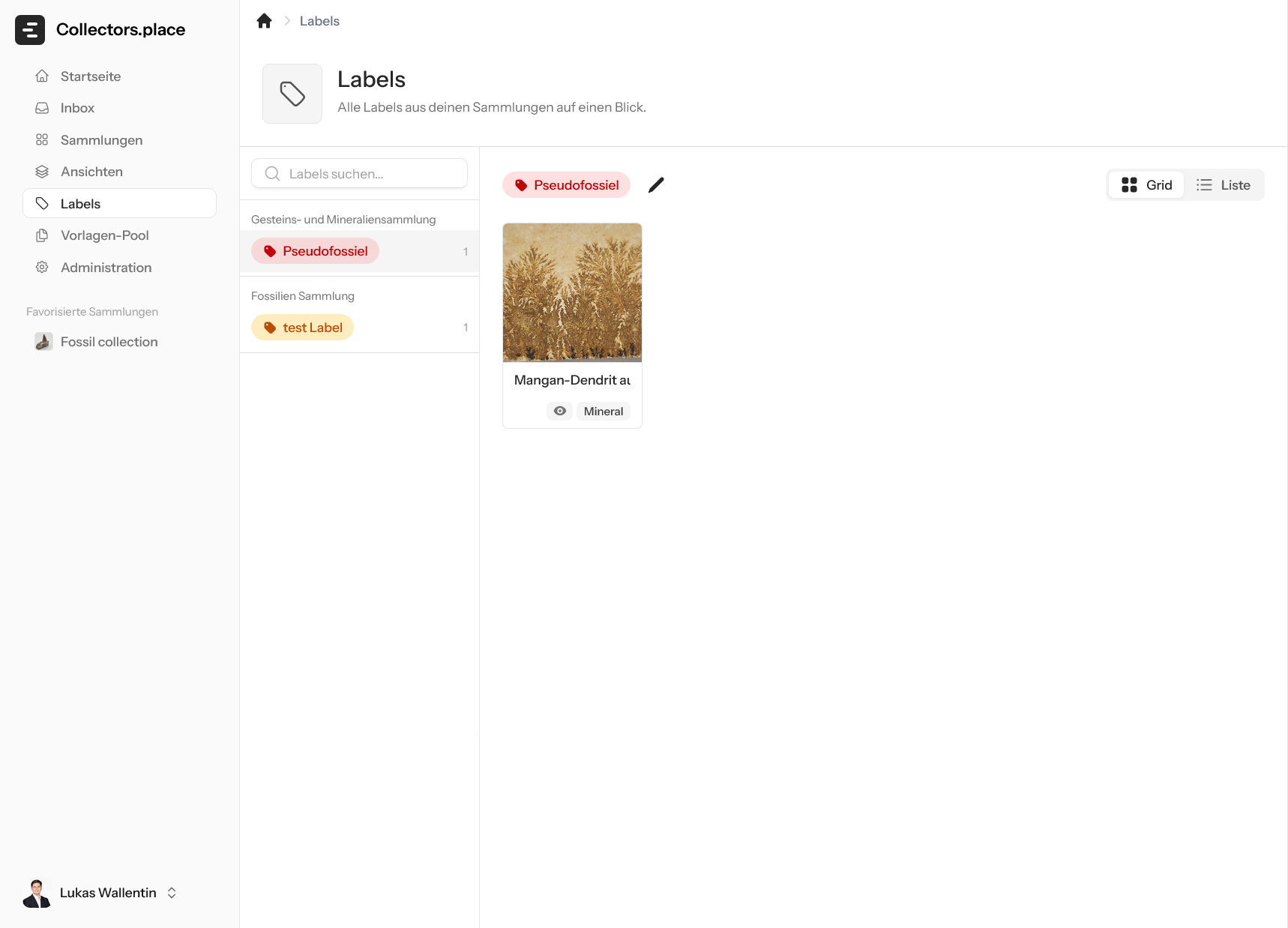
After saving, the label appears in the overview with its new colour. The assigned items stay linked and are shown immediately with the updated label.
Finding labels
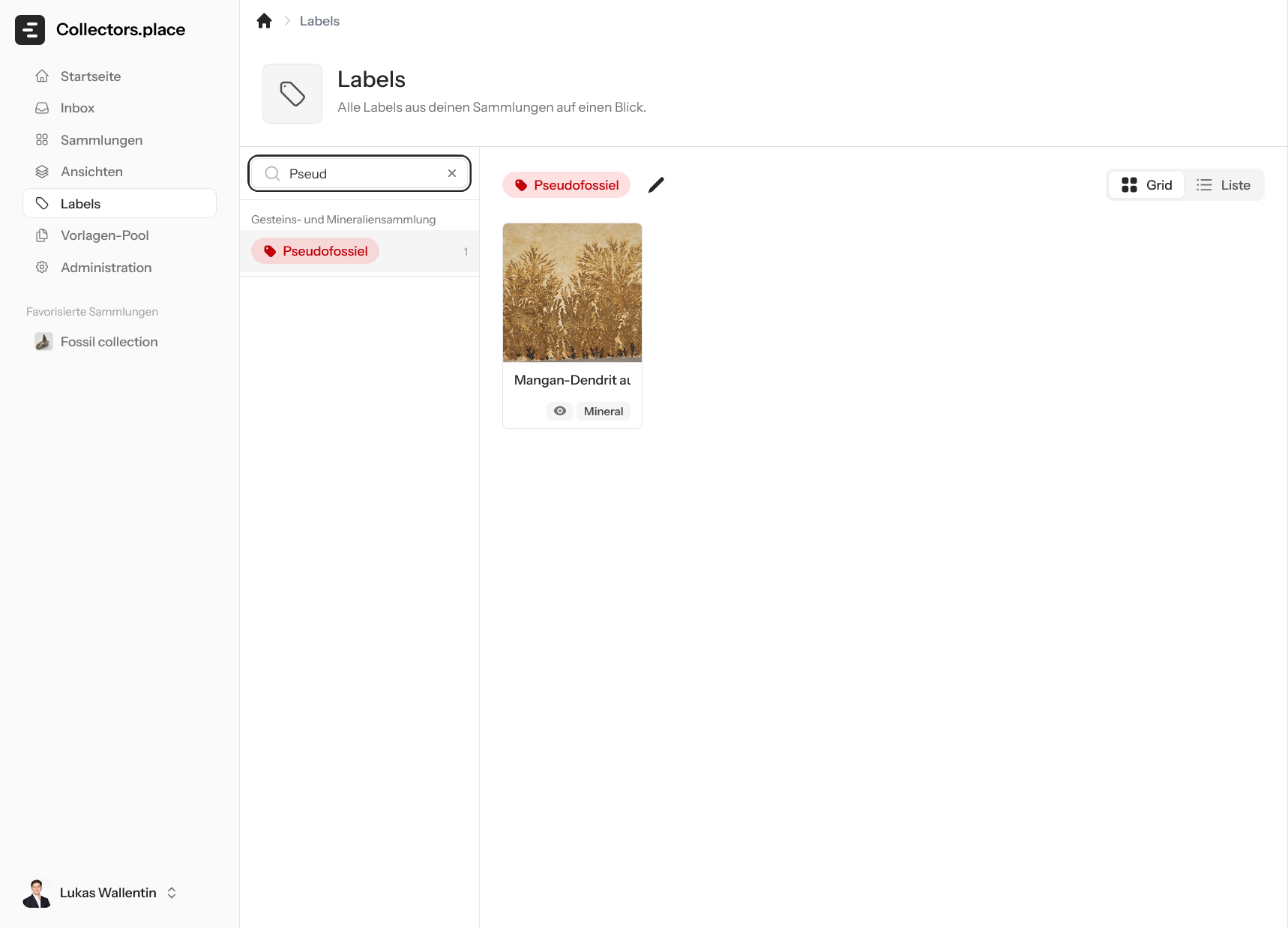
The search field helps you find the right label quickly, even when you maintain many entries. It is especially useful when you only want to edit one specific topic.
Key points
- Labels give items recognisable keywords
- Colours make labels easy to scan at a glance
- Search and editing keep the list manageable