Tools - Export Collections
In the Tools area you can export whole collections or selected items. An export is not finished in the browser right away; it is generated in the background. Because of that, it may take a moment before the new entry appears in the list as available.
Start the export
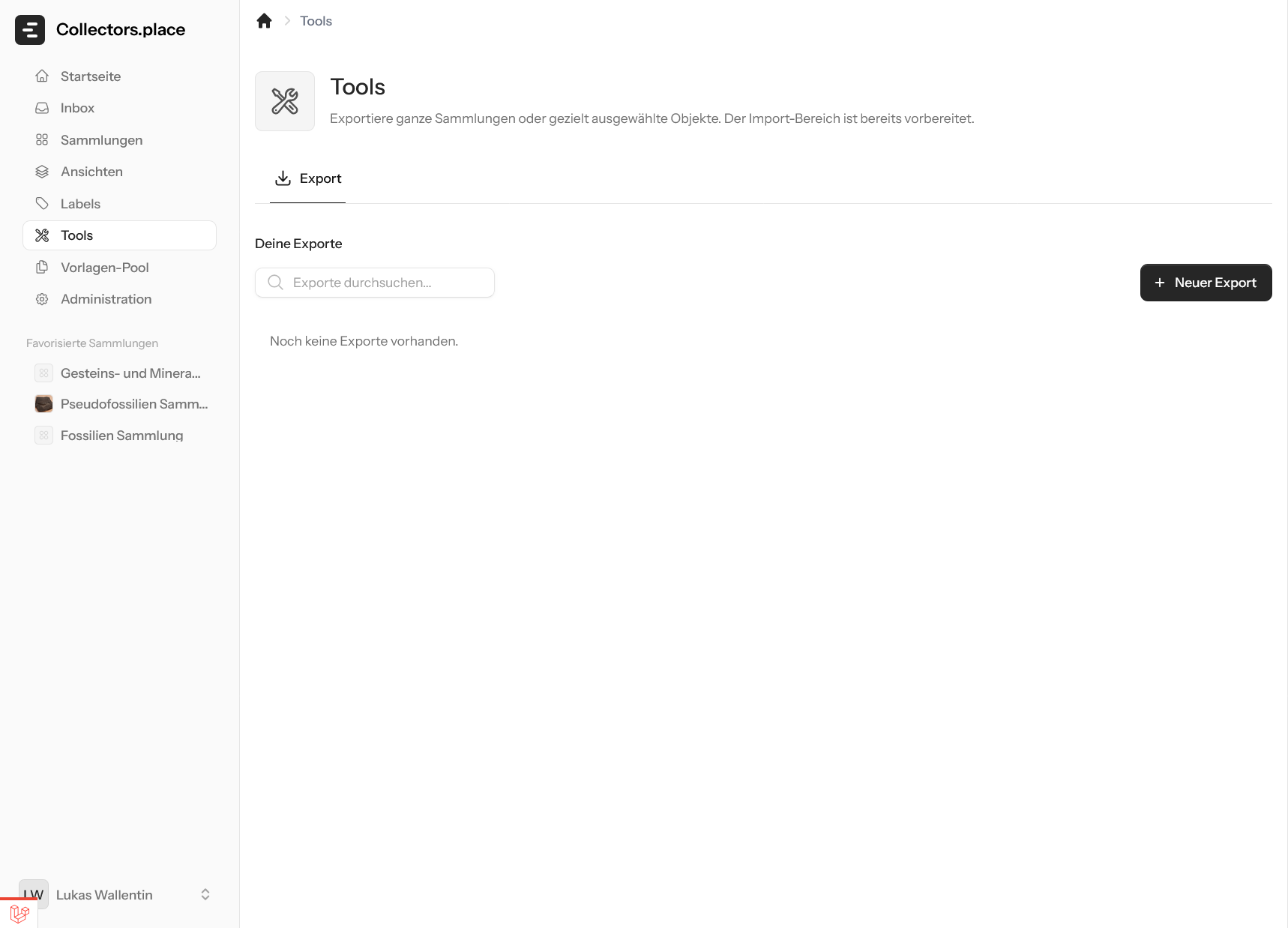
Use New Export to open the configuration dialog. There you first choose the collection you want to export from.
Choose a collection
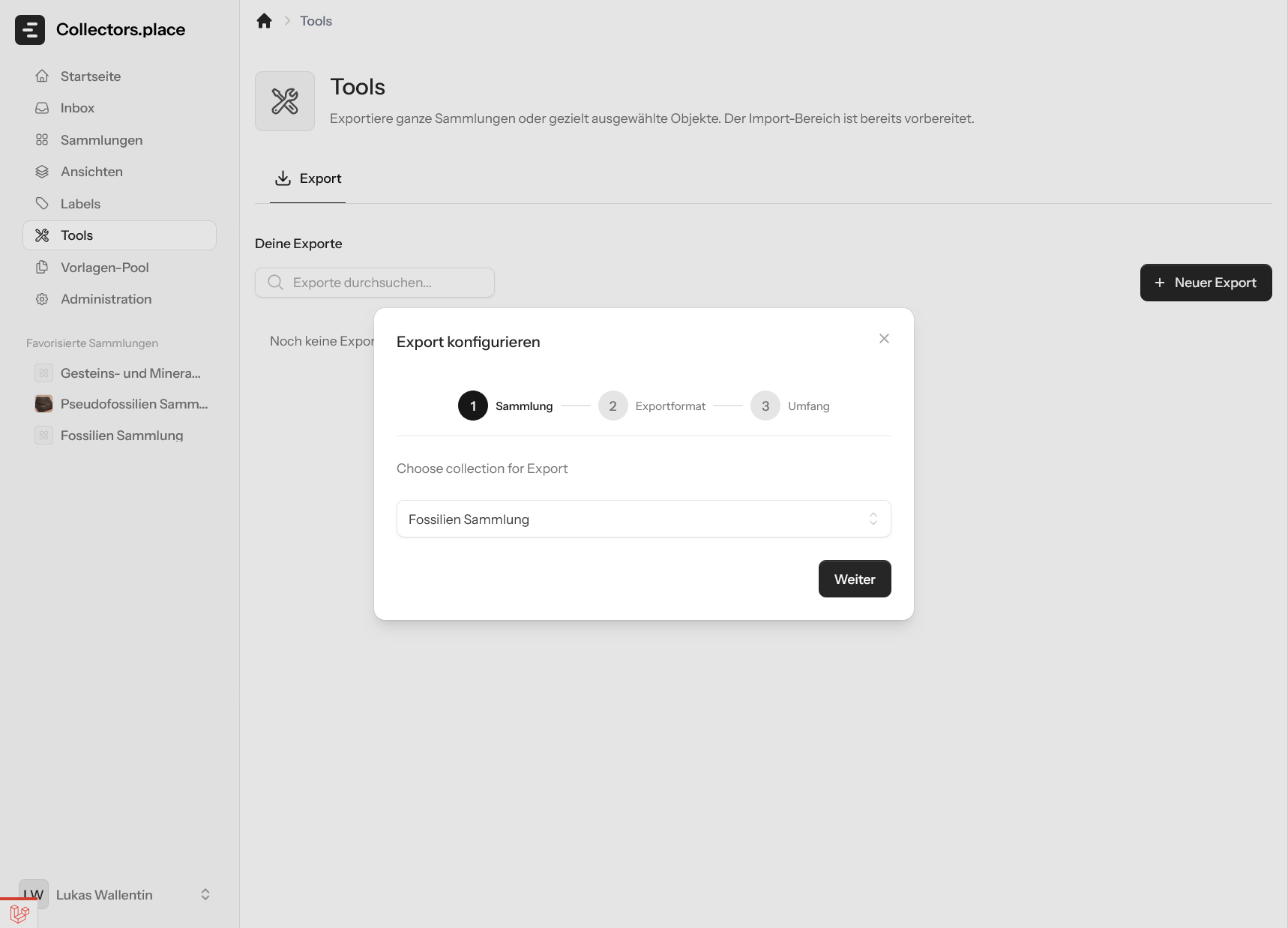
In the first step, define which collection should be exported. That makes it clear what the export refers to later on.
Choose an export format
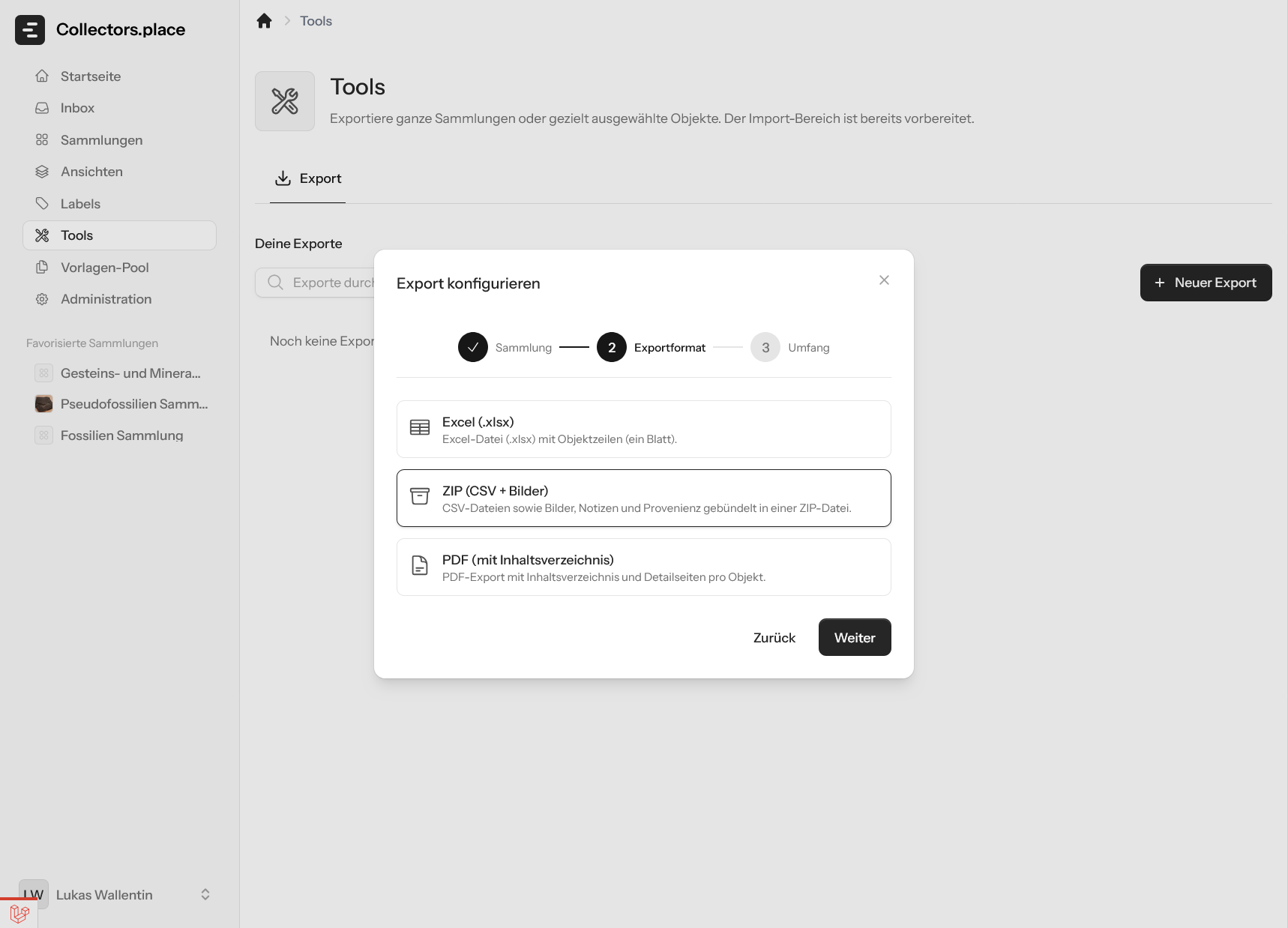
Then pick one of the available formats:
- Excel (.xlsx) - a classic spreadsheet file with the item data
- ZIP (CSV + images) - a bundled export file with CSV lists, images, notes, and provenance
- PDF - a readable export with a table of contents and detail pages per item
Set the scope
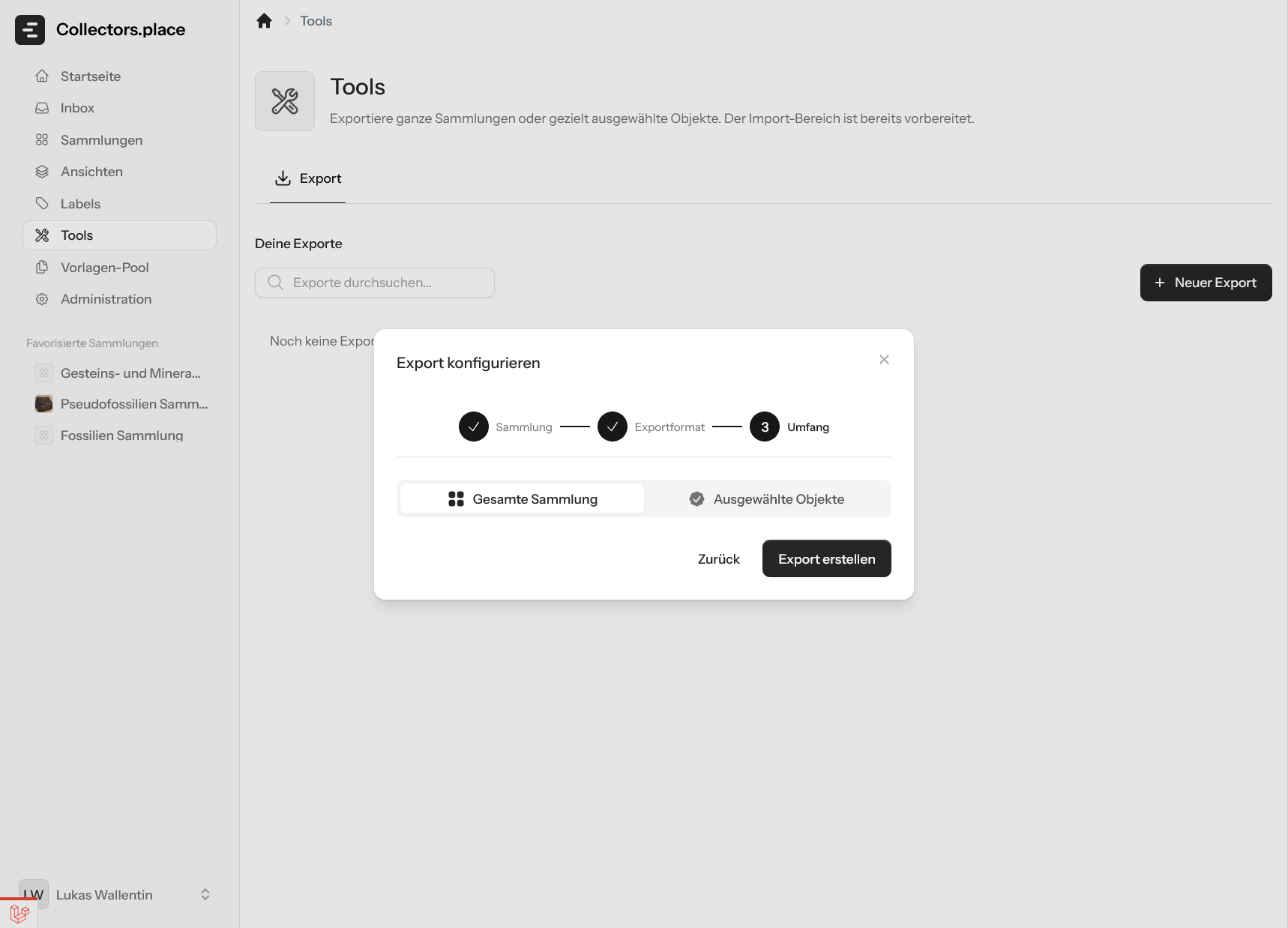
In the final step, choose whether you want to export the entire collection or only selected items. Then start the export with Create Export.
Export is being created
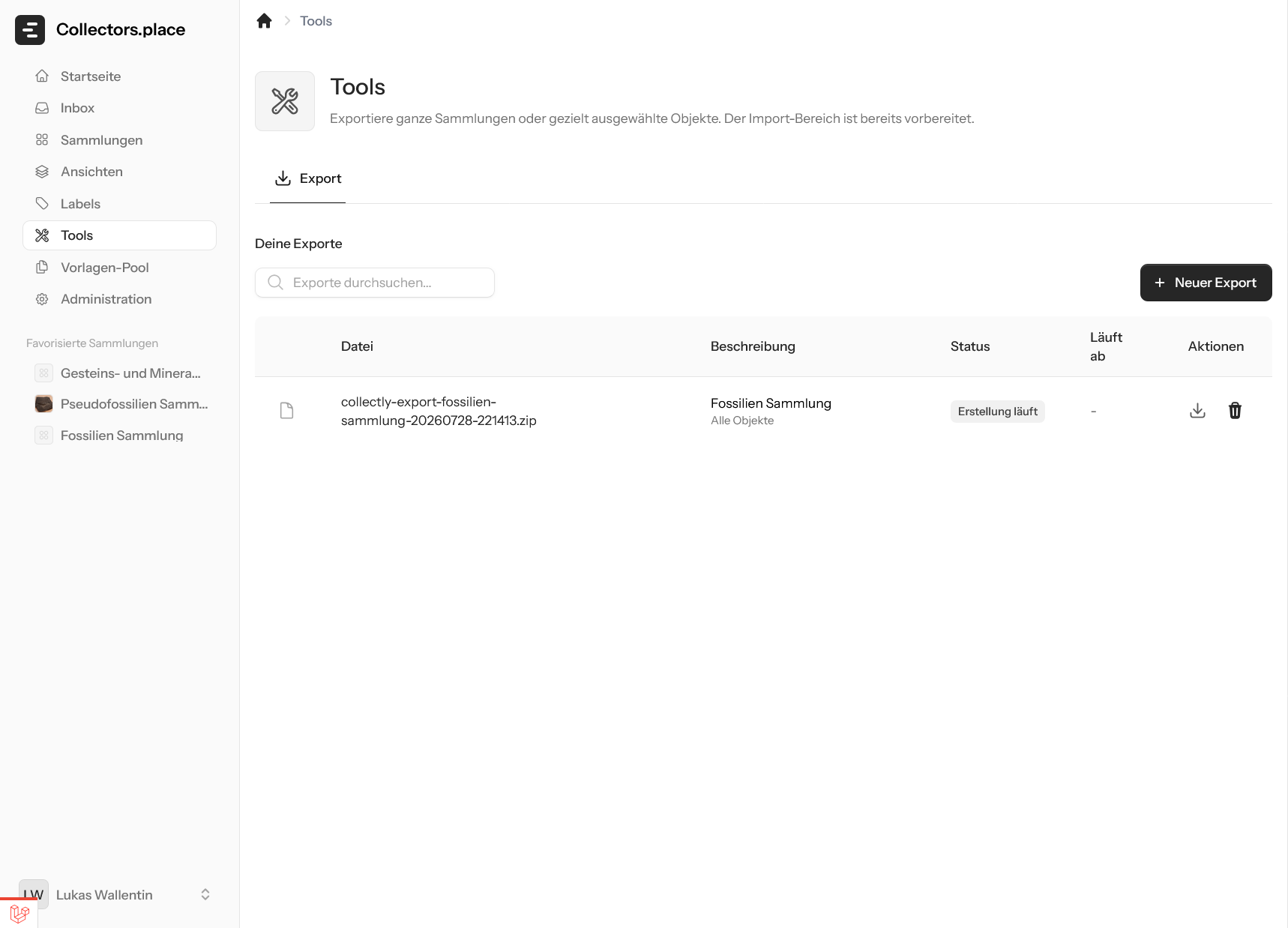
After starting, the new export first appears with the status Creation in progress. Depending on the scope, this can take a while before the file is actually ready to download.
Export is available
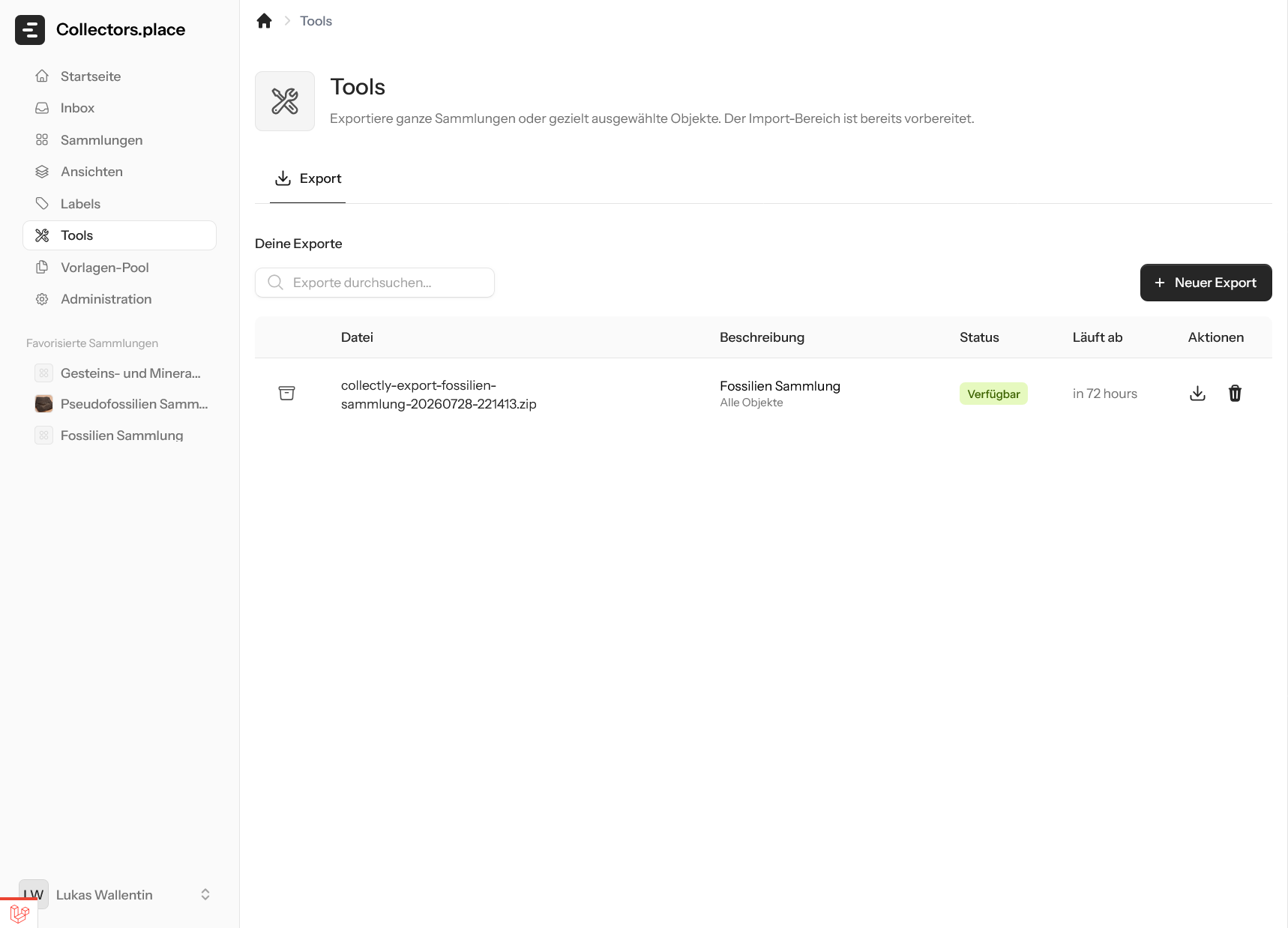
Once the file is ready, it is marked as Available and can be downloaded. The list also shows when the export expires. After some time it is deleted automatically so old exports do not keep using storage forever.
Key points
- Exports are created in the background
- Completion can take a while
- Excel, ZIP, and PDF exports are available
- Expired exports are deleted automatically