Manage Collections
Collections are the organisational core of collectors.place. This is where your items, info items, media, settings, and the full structure for later work all come together. A well-prepared collection saves a lot of backtracking later.
Collections overview
The collections overview is the starting point for everything else. It shows all collections you can access and lets you switch between grid and list view. The page stays intentionally light so you can recognise your collections quickly and jump into the right one without friction.
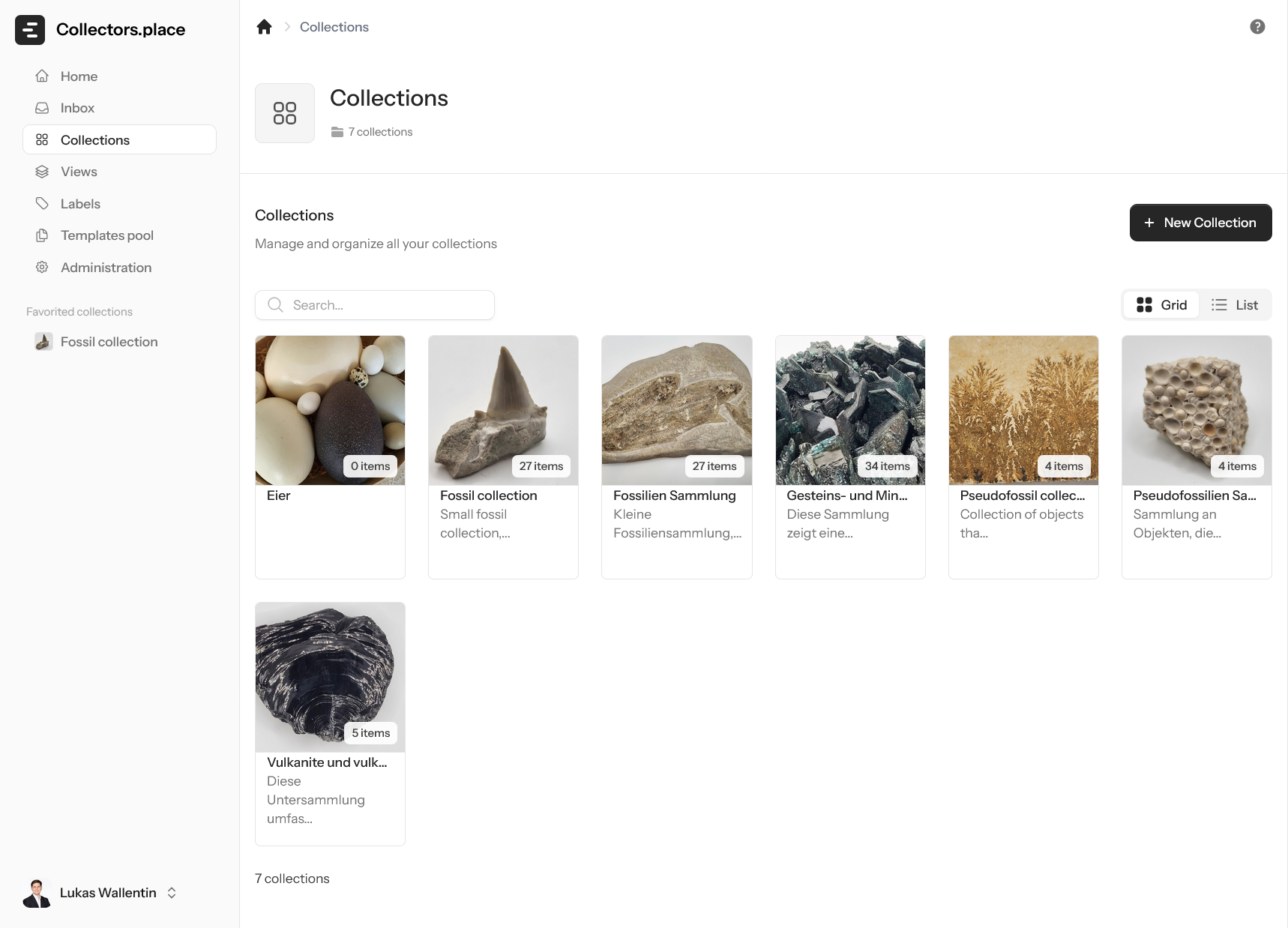
If you work with many collections, search becomes especially useful. It helps you find even smaller or less frequently used collections without scrolling through cards for too long.
When creating a collection you provide a name in the selected language, an optional description, choose German or English as the language, and can set a cover image right away if you want.
Creating a new collection
Use New Collection to open the creation flow. The process is intentionally step-by-step so you can enter the most important information first and refine the rest later.
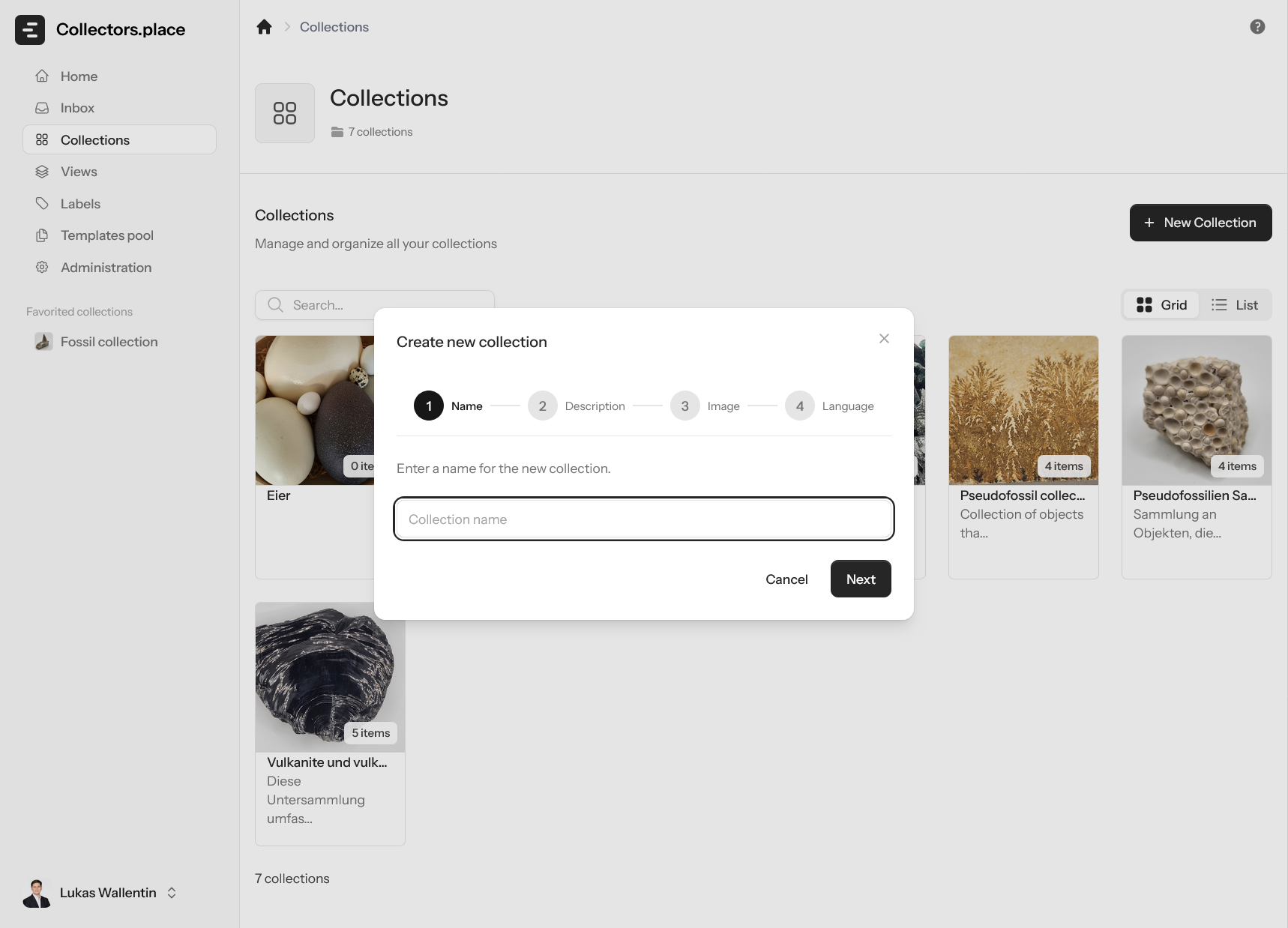
First you choose a name and a language. Then you can add a description, a cover image, and other details. If you're not entirely sure yet, you can still create the collection with the minimum required information and complete it later.
The practical approach is simple: build the structure first, then fill in content and images afterwards. That keeps the collection tidy while it grows.
Items in a collection
When you open a collection, you see the full list of its items. This view is the heart of the collection because you can switch between grid and list view, search, sort, and move through your records quickly.
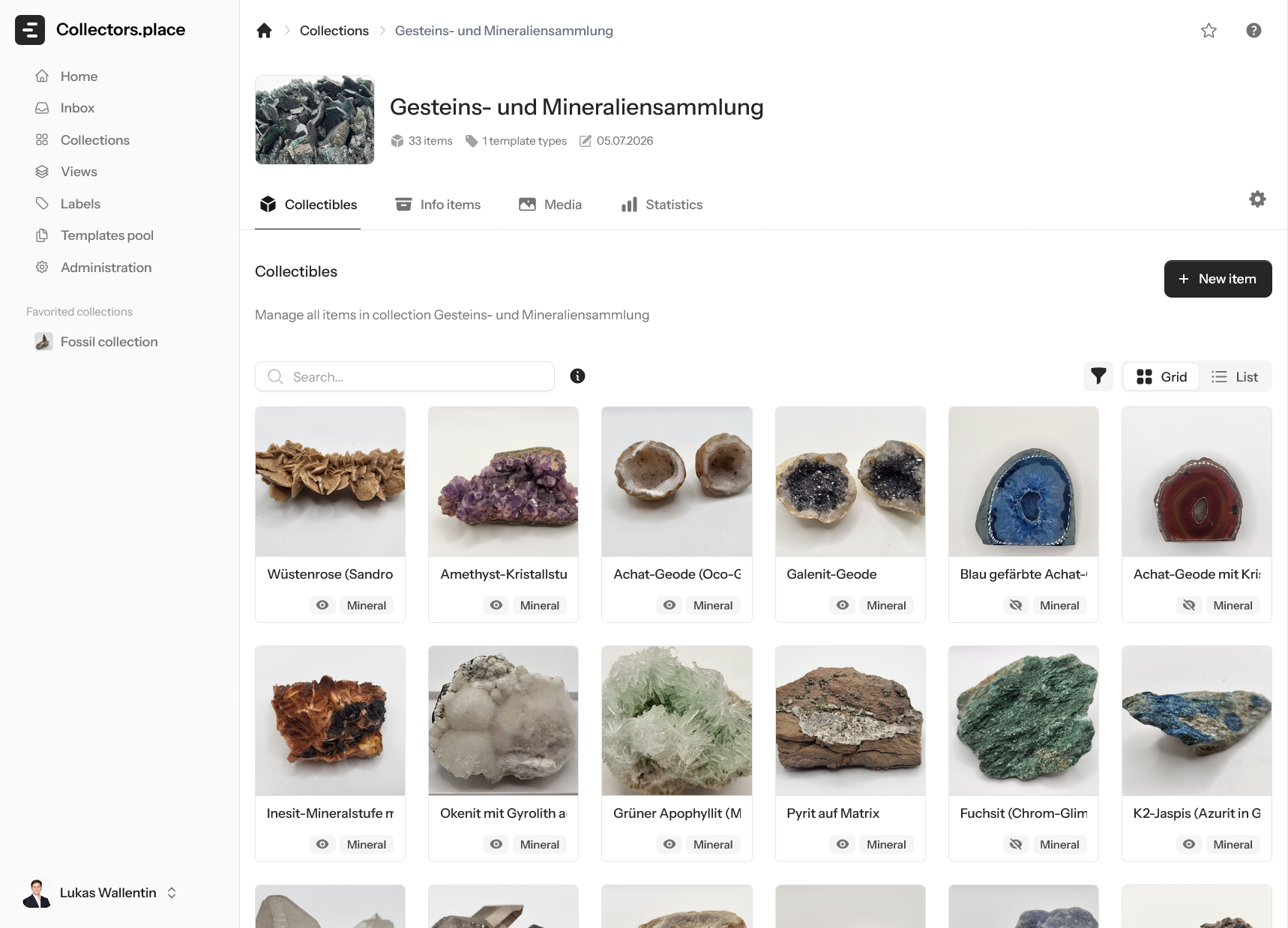
The item view is the place where you do the day-to-day work:
- In grid view, you recognise items quickly through their thumbnails.
- In list view, you can compare many entries at once in a compact table.
- Search helps you find older or rarely edited items quickly.
- Sorting and filtering let you focus on exactly what you need.
That makes the collection view the central place for finding, opening, and maintaining items in a structured way.
Info items as context
Info items are where you store everything that explains a collection without being the collectible item itself. That includes people, places, catalogues, or other references.
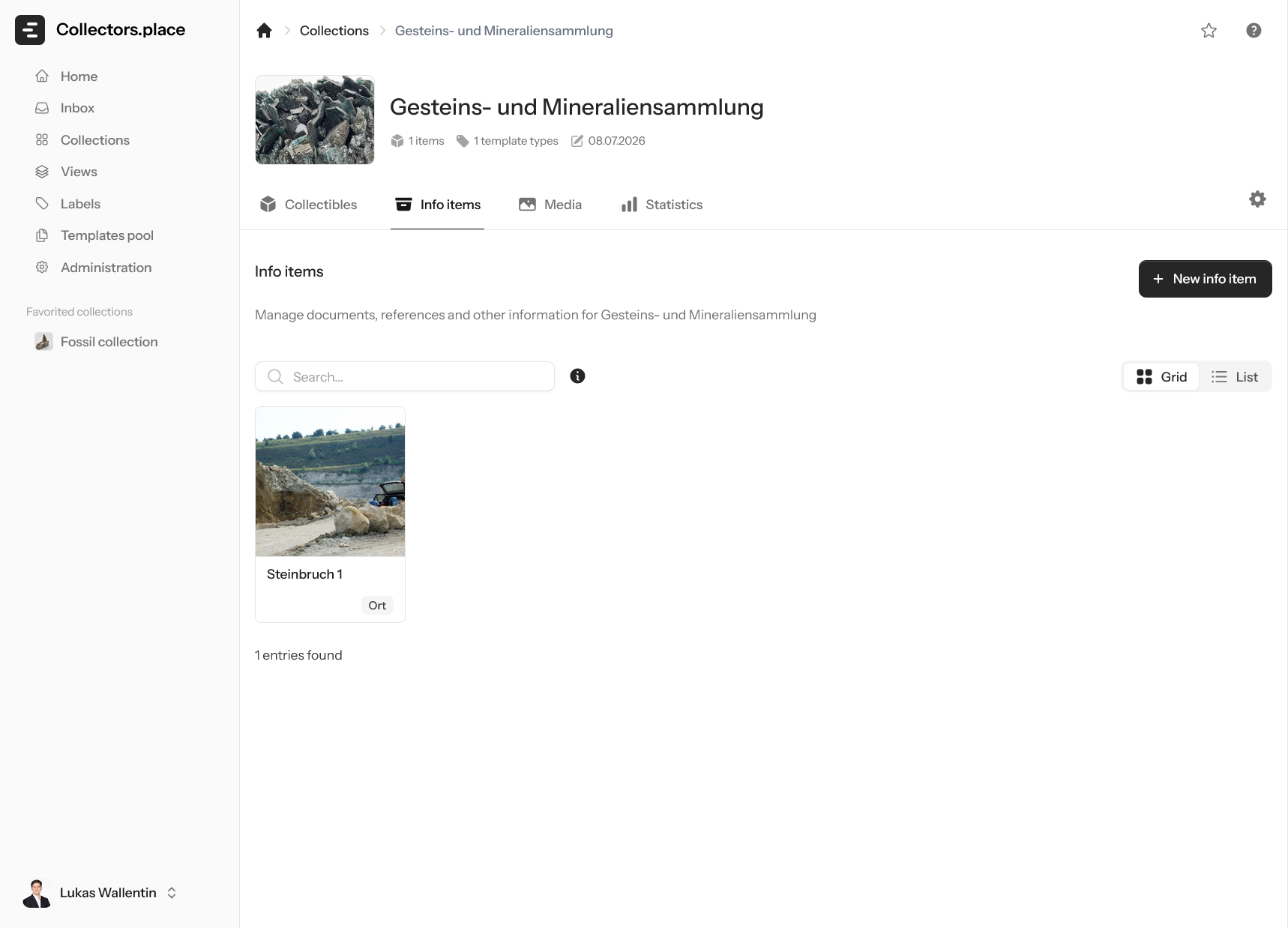
Using info items makes a collection much more meaningful. You are not only documenting things, but also the context behind them. That is a major advantage when it comes to provenance, research, and source work.
Media that belongs to the collection
Not every file belongs to a single item. Some images, scans, or documents relate to the whole collection. That is what the media area is for.
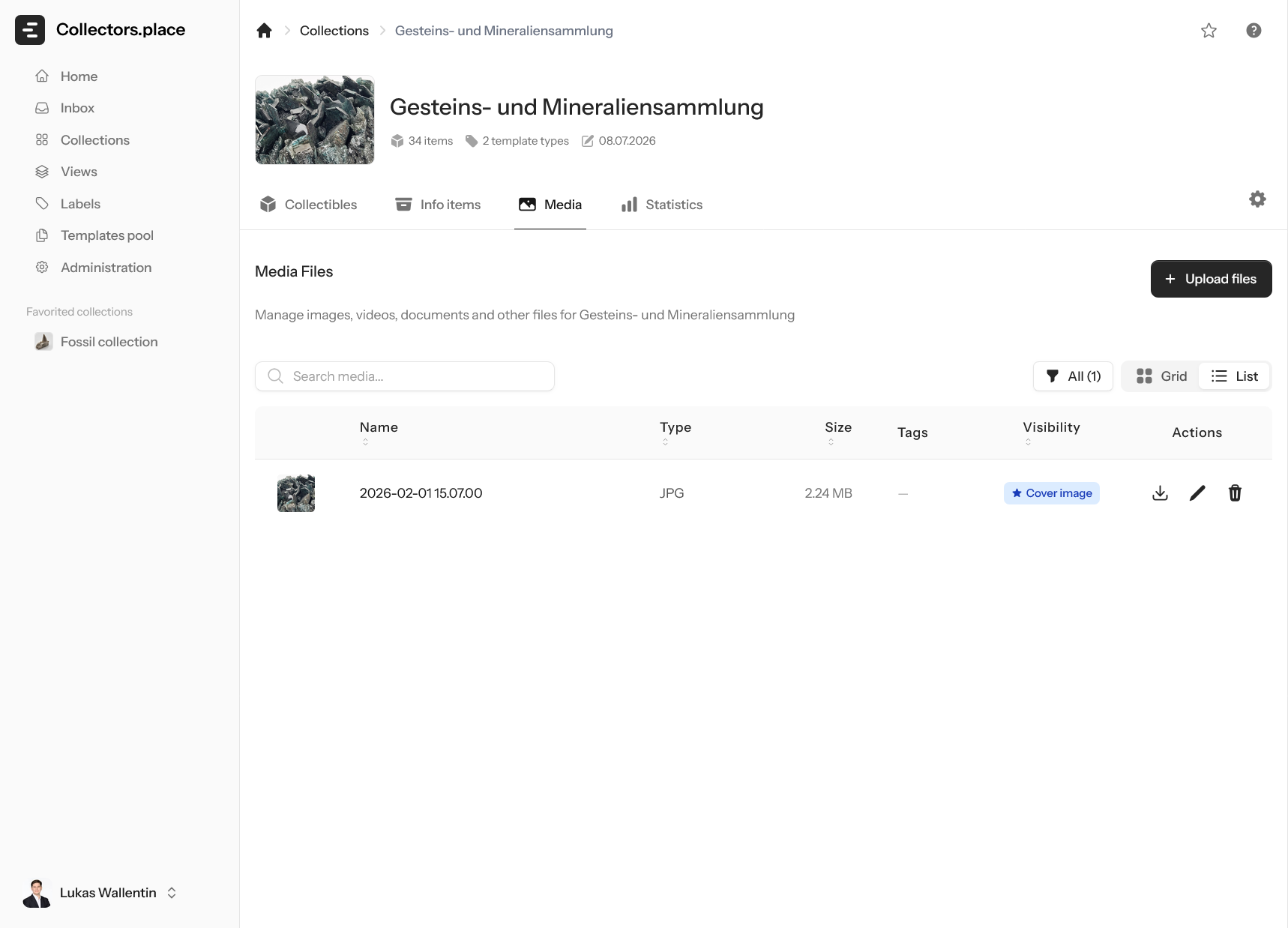
Here you can keep collection-level material in one place and retrieve it later. This is especially useful for shared sources, overviews, documents, or images that do not belong to just one item. It keeps the collection itself complete as a workspace.
The collection dashboard
The dashboard is the best place to understand the health of a collection at a glance. It does not just show counts; it shows patterns: Is the collection growing? Which categories are dominant? What was added recently?
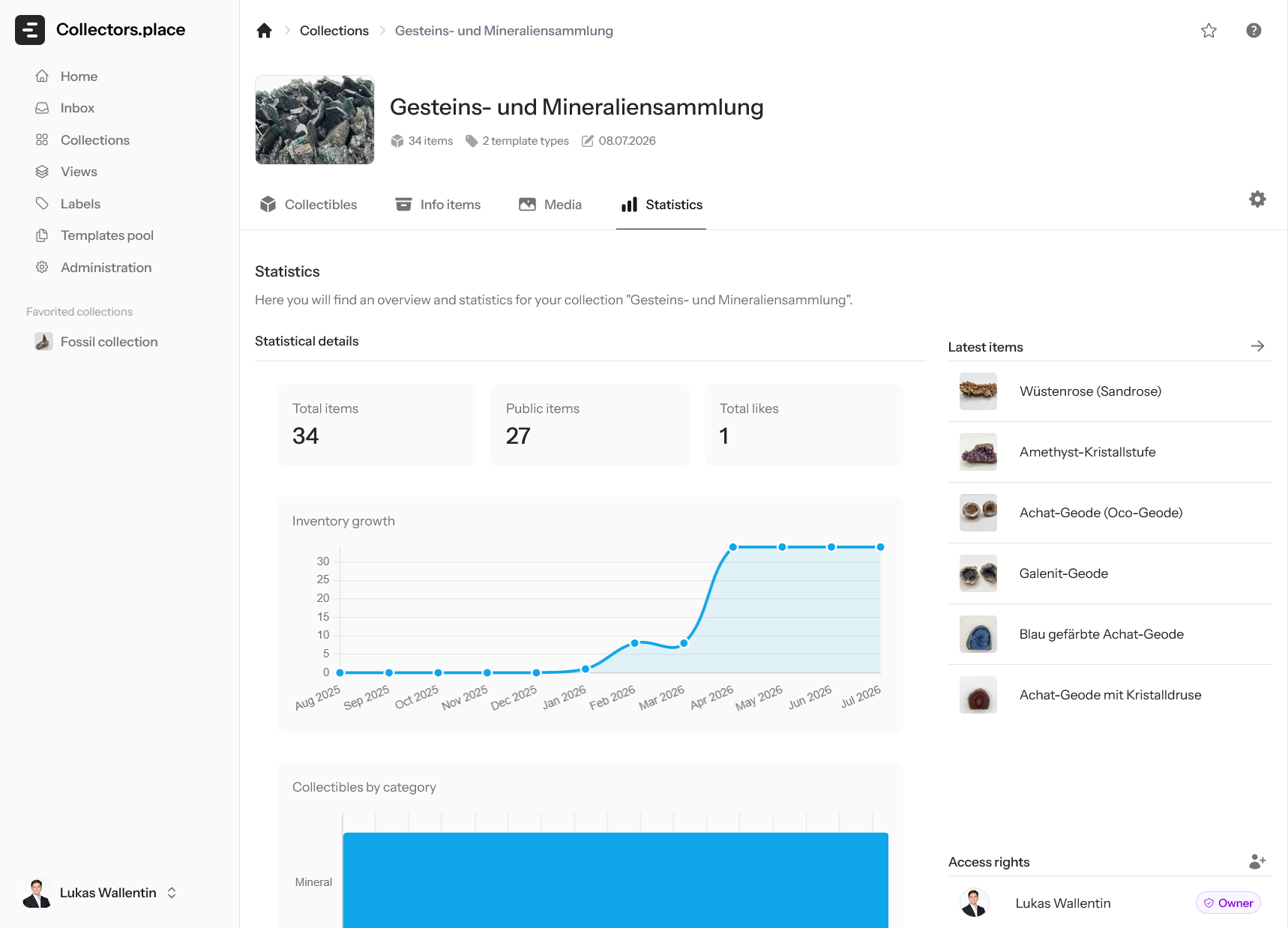
The dashboard shows among other things:
- Total item count and growth in the last month
- A line chart of item count over time
- A pie chart of category distribution by template
- Recently added items with thumbnail
- The active team with roles
For larger collections, this page is especially useful because it makes progress visible. You can immediately see whether new items are being added regularly, whether certain categories dominate, or whether a section still needs attention.
Cover image and public address
The cover image and public address live in General settings. This is where you adjust the collection when its name, focus, or appearance changes.
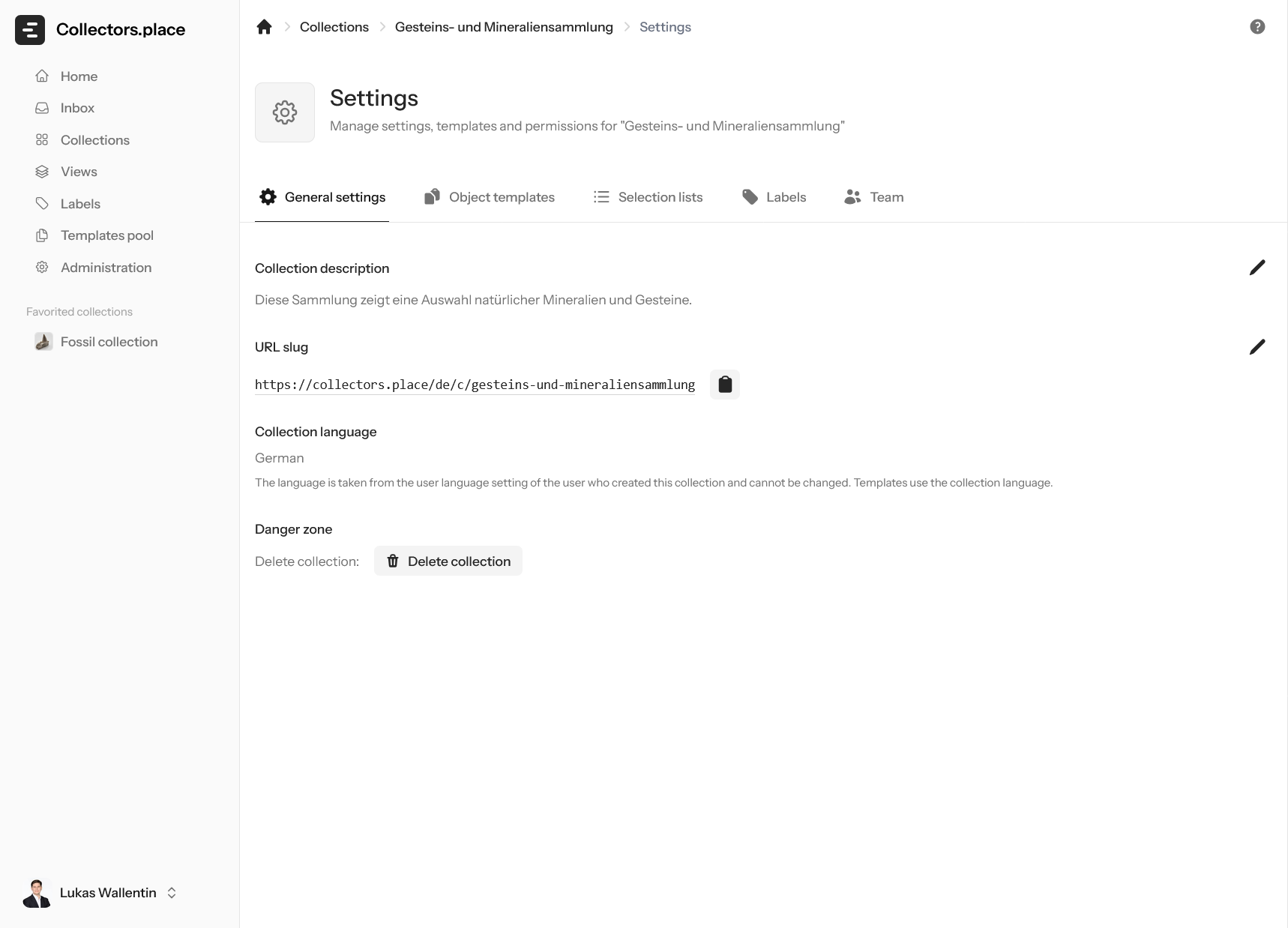
Every collection has a readable address that is easy to recognise and share. The cover image gives the collection a stronger visual identity.
Templates and selection lists
Templates control which fields a collectible item has. That makes them more than just a technical setting: they define how you collect, which data you maintain, and how consistent your records stay.
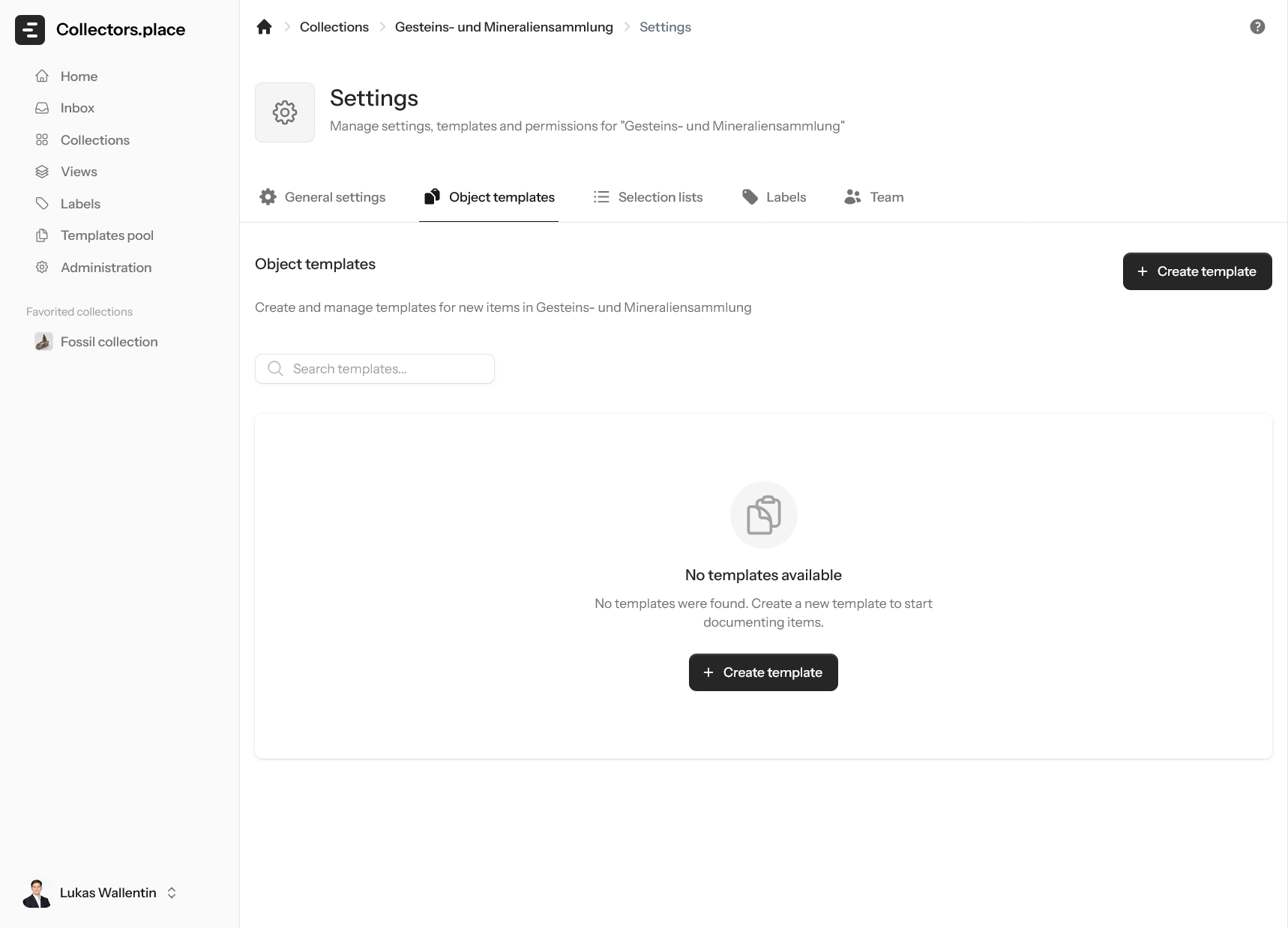
Within templates, you decide whether an item only needs a few basic fields or whether a specific collection needs a much more structured data model. These features are not available in every collection and depend on the account tier and what the owner has enabled.
Selection lists are closely connected to templates. They help you standardise recurring fields such as material, origin, condition, or any other fixed vocabulary.
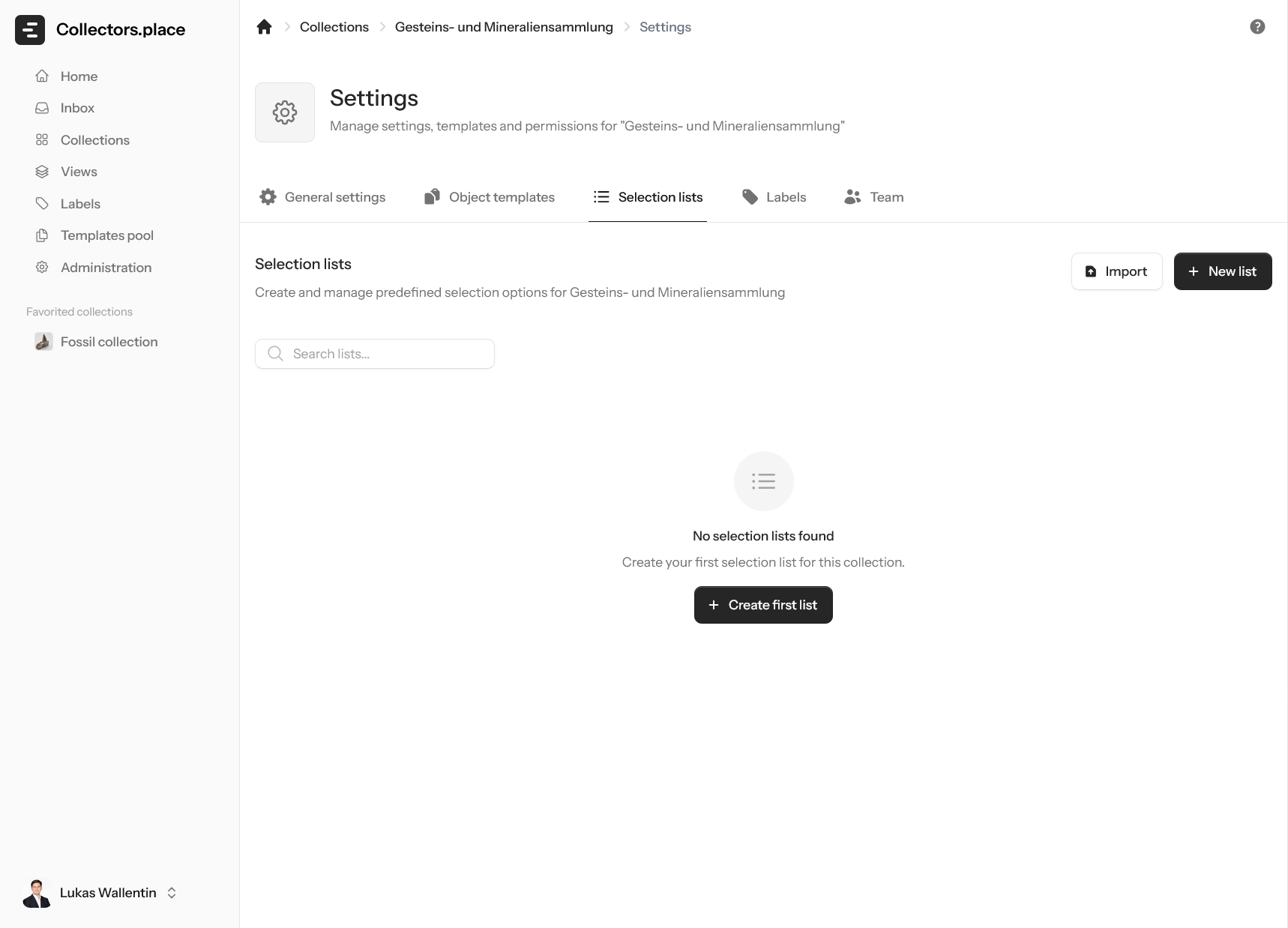
When templates and selection lists are maintained properly, data entry becomes much faster and far more reliable. You avoid inconsistent spelling and create a foundation that also works well for larger collections and later analysis.
Managing labels
Labels are the fast way to mark items across a collection or even across multiple collections. They work well for themes, status, priorities, or any other grouping you want to find again later.
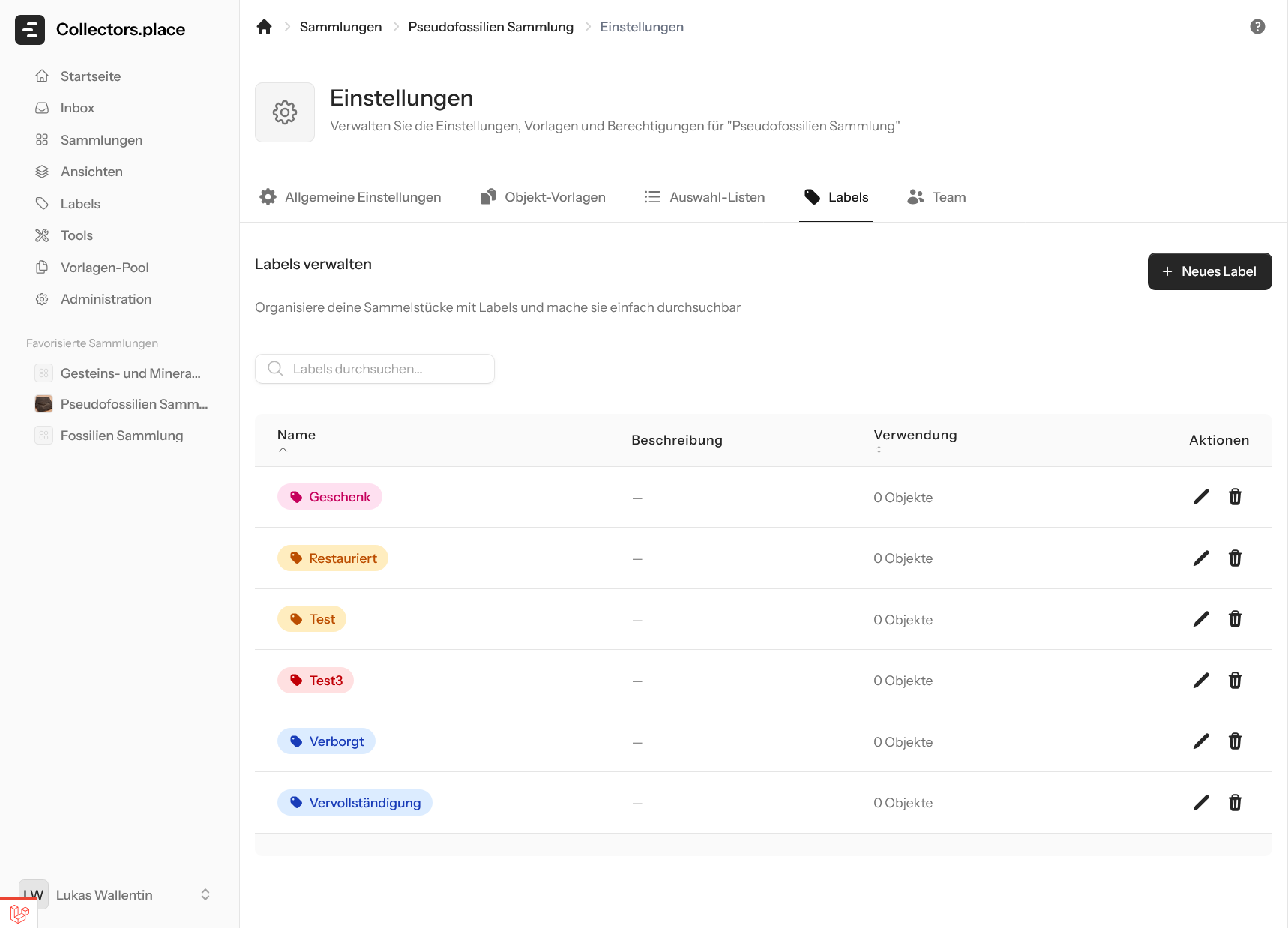
The labels page is intentionally simple. You can search existing labels, create new ones, and use colours so important markers stand out faster. If you manage many items, labels are often the easiest way to impose order on recurring patterns.
Team
In the team section you manage who has access to the collection and what those people are allowed to do. This is where you see owners, managers, and editors at a glance, invite new users, and change access rights.
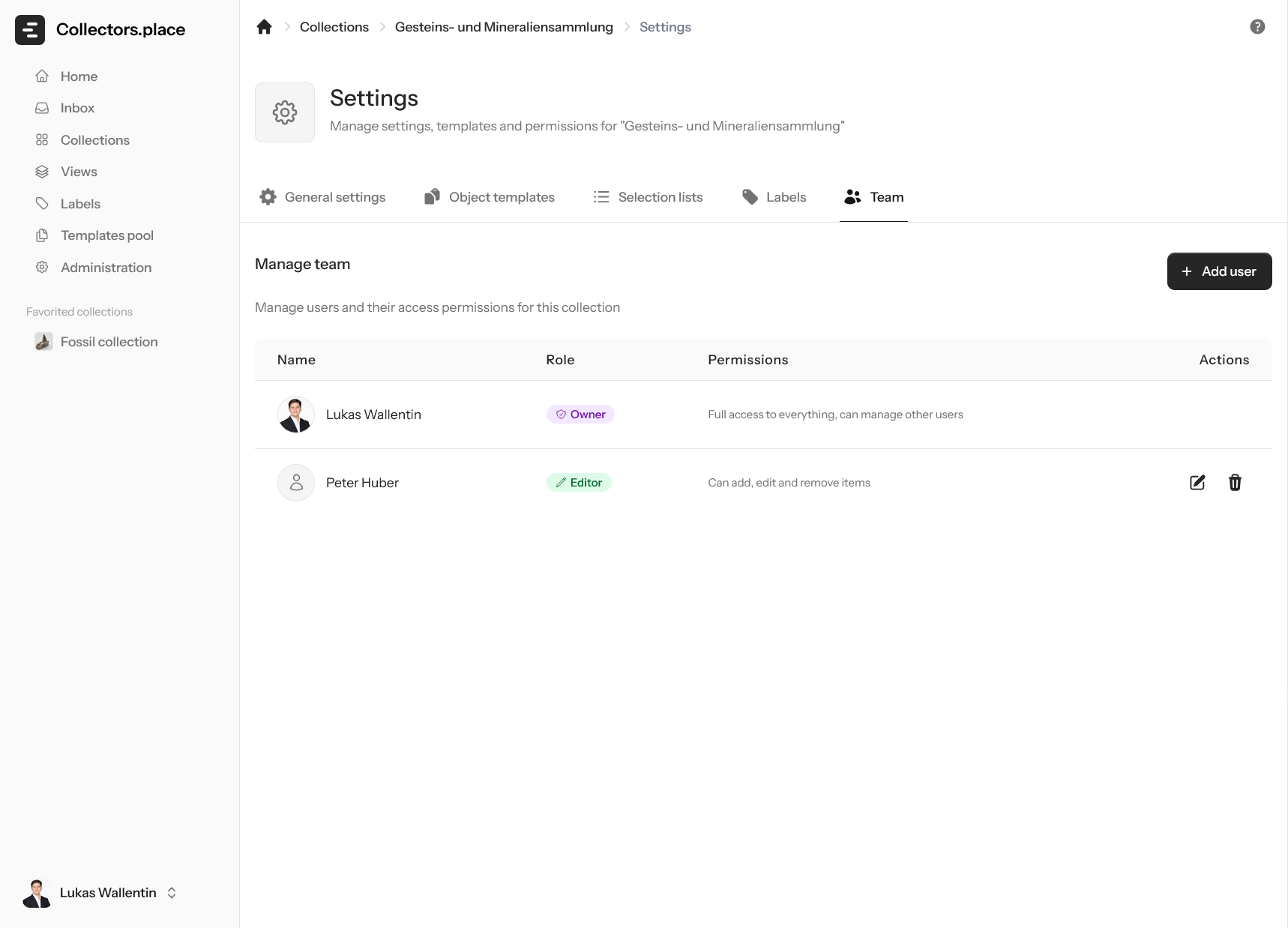
The owner always has full control. Managers can also manage most collection-level tasks, while editors mainly work with the content itself. That keeps responsibilities clear between settings and everyday editing.
For shared collections, this area is especially important because it keeps access clean and traceable. If multiple people work in one collection, the team tab is where invitations, roles, and removals are handled.
How the sections work together
Good collection management does not come from individual menus alone, but from the way the sections work together. A collection starts in the overview, is prepared properly in settings, structured with templates, made easier to scan with labels, and enriched through media and info items.
Once you understand that flow, every new collection becomes much easier to build. Instead of solving everything at once, you work in clear steps: create, structure, fill, expand.