Manage Item Provenance
Provenance is the timeline of an item. Here you document where it came from, which stations it passed through, and what happened to it over time.
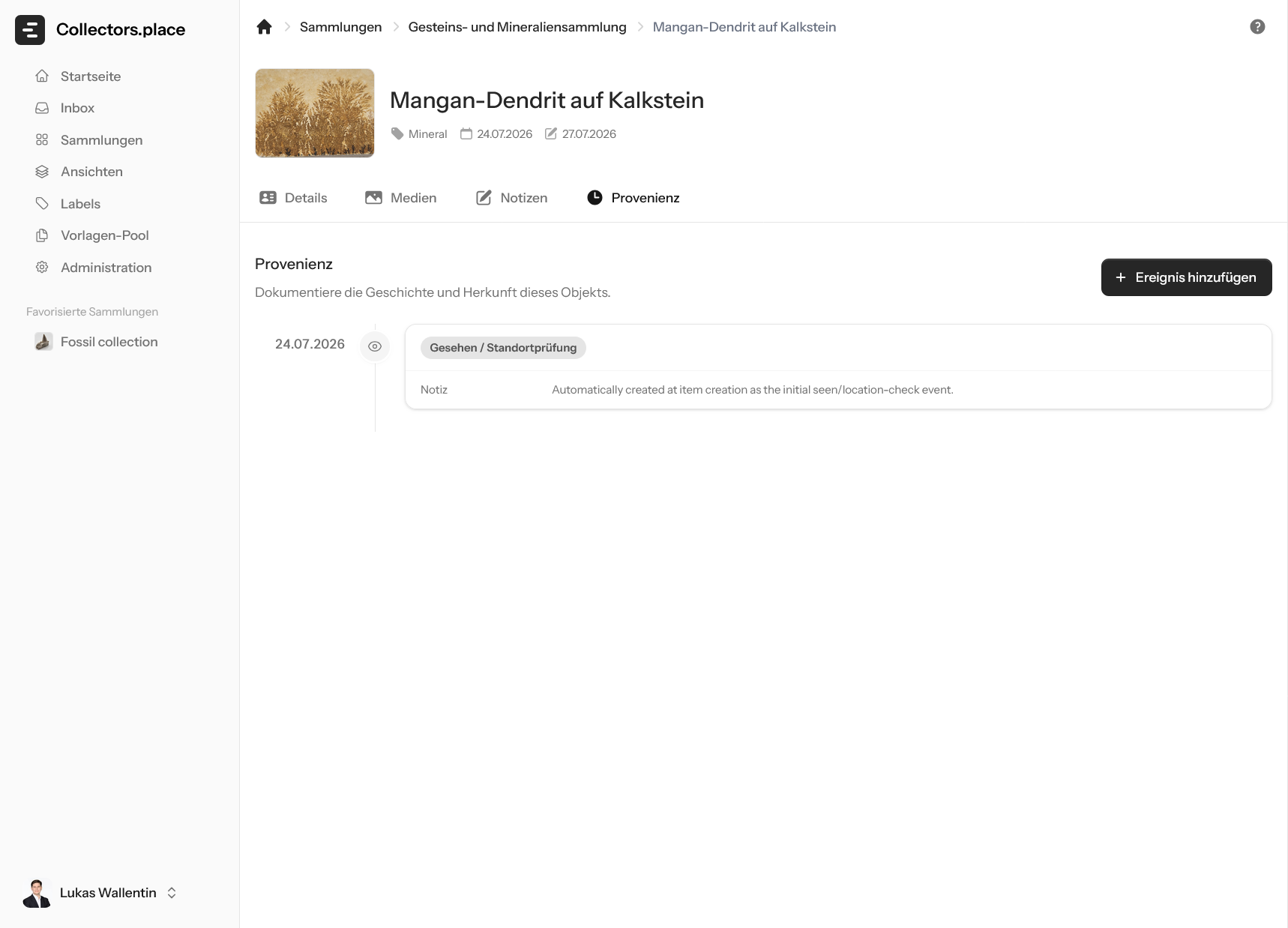
The first image shows the empty or not-yet-filled provenance view. At the top you see the timeline with the first entry. In this example it is an automatically created starting point such as Seen / Location check. That gives you an immediate reference point while you continue working on the item.
Reading the timeline
Each entry in the timeline represents one event. On the left you see the date information, in the middle the title and key values, and on the right the actions for editing, deleting, or completing the entry.
Colored status hints show whether an event is already completed, still ongoing, or overdue. Open events stay visible in the timeline until you close them.
Adding an event
Use Add event to open the dialog for new provenance entries.
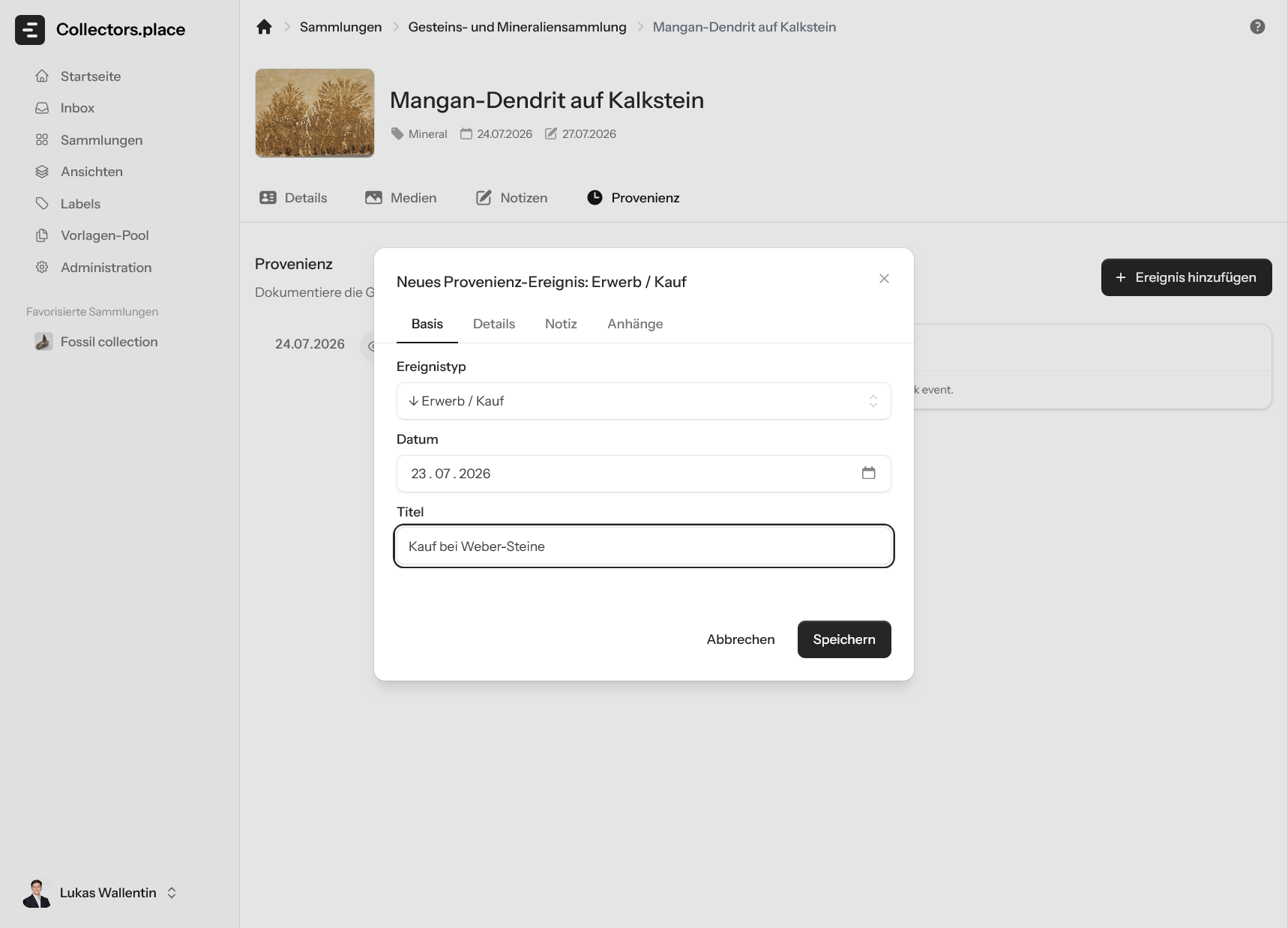
In the dialog, choose the event type first. The list is grouped into categories such as Pre-collection, Inbound, In Collection, Accompanying, and Outbound. Then enter the date, title, and the remaining details.
The fields adjust automatically to the selected event type. In the Basis tab you define the type and date. For events with a duration, you can enter both a start and an end date.
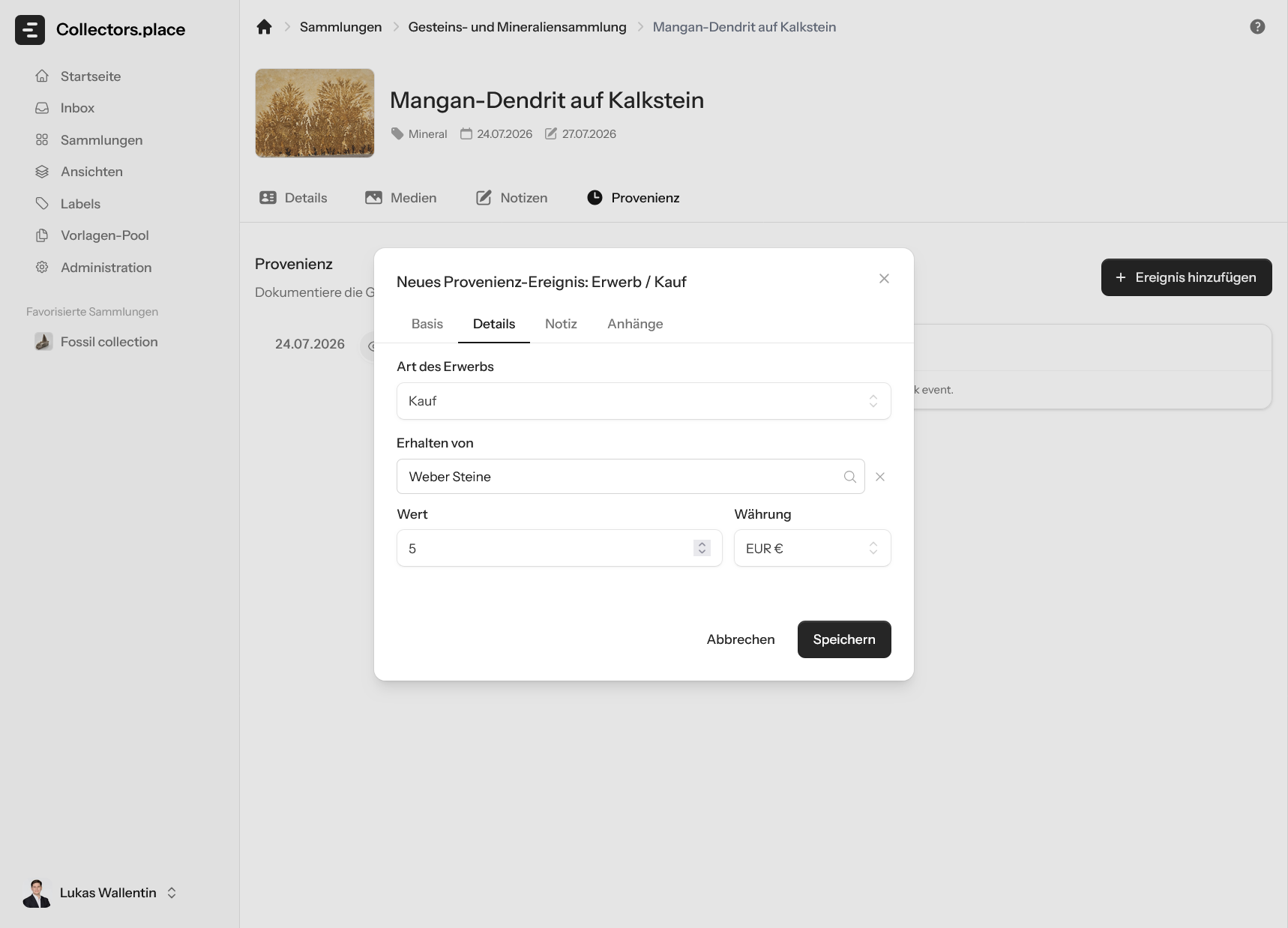
In the Details tab you add values such as price, currency, source, find location, exhibition location, workshop, method, or the involved person or institution, depending on the event. That keeps the record precise and consistent.
Note
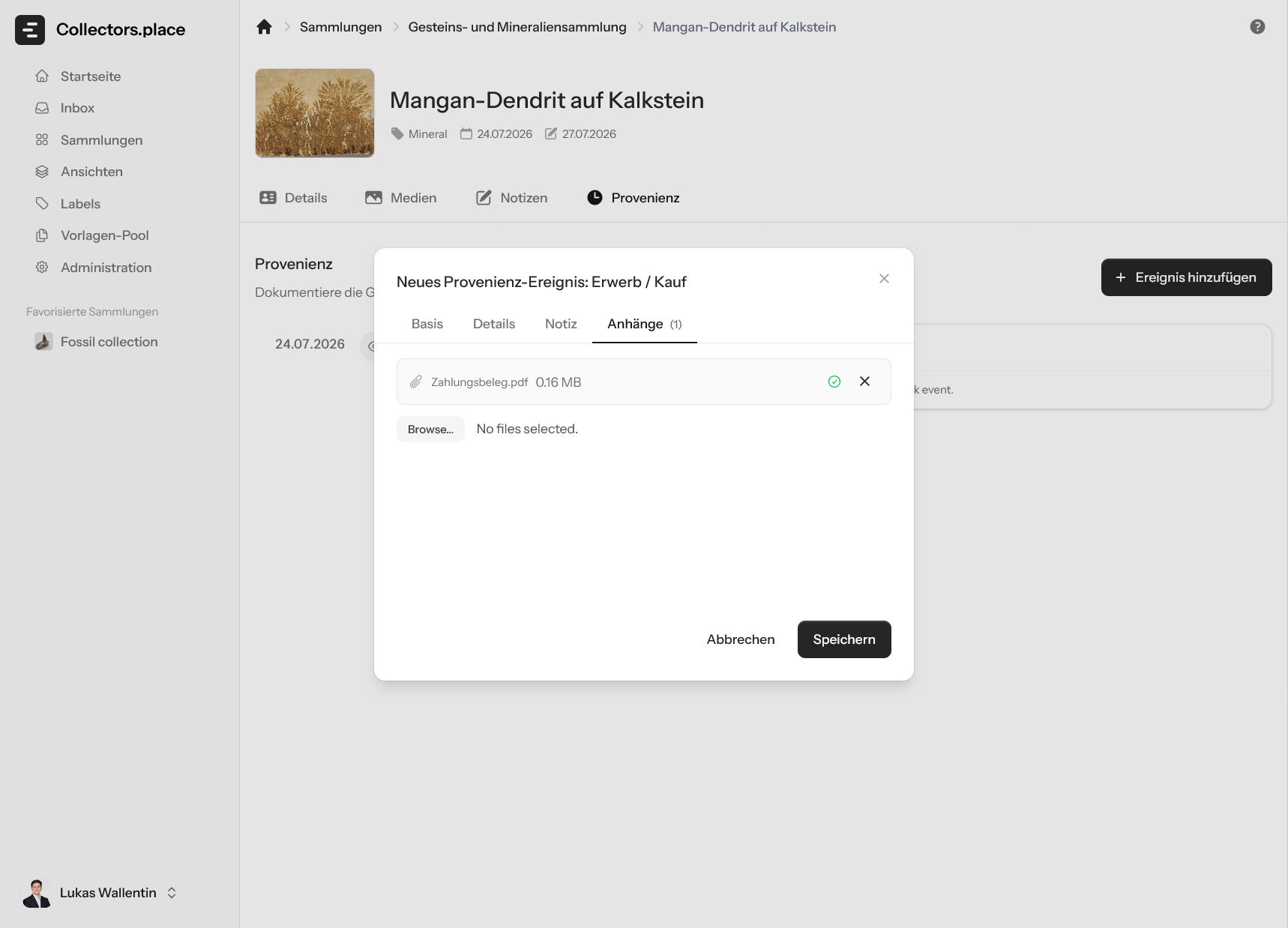
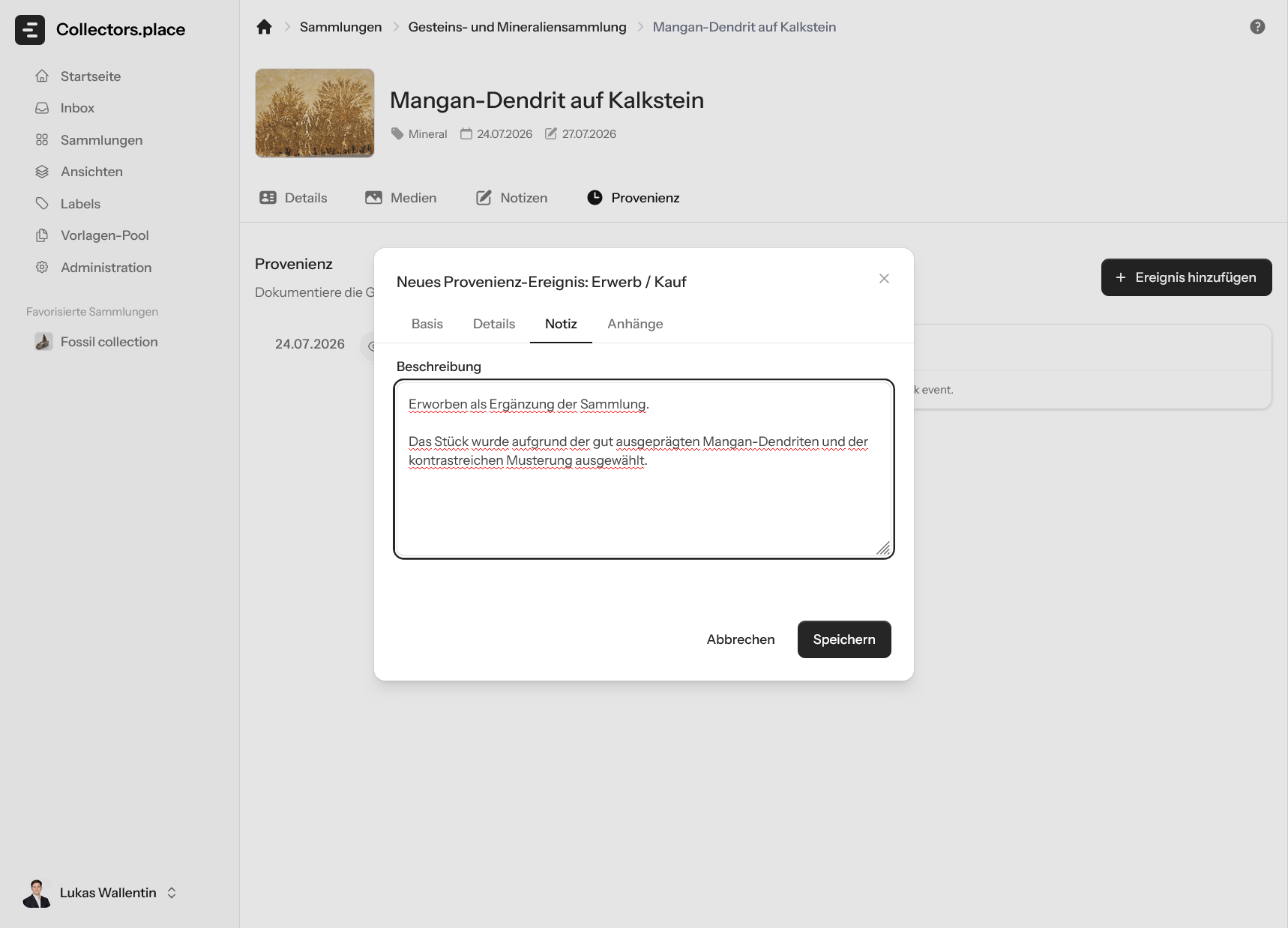
In the Note tab you can store longer explanations. Use it for background information, observations, or special remarks about the event.
Attachments
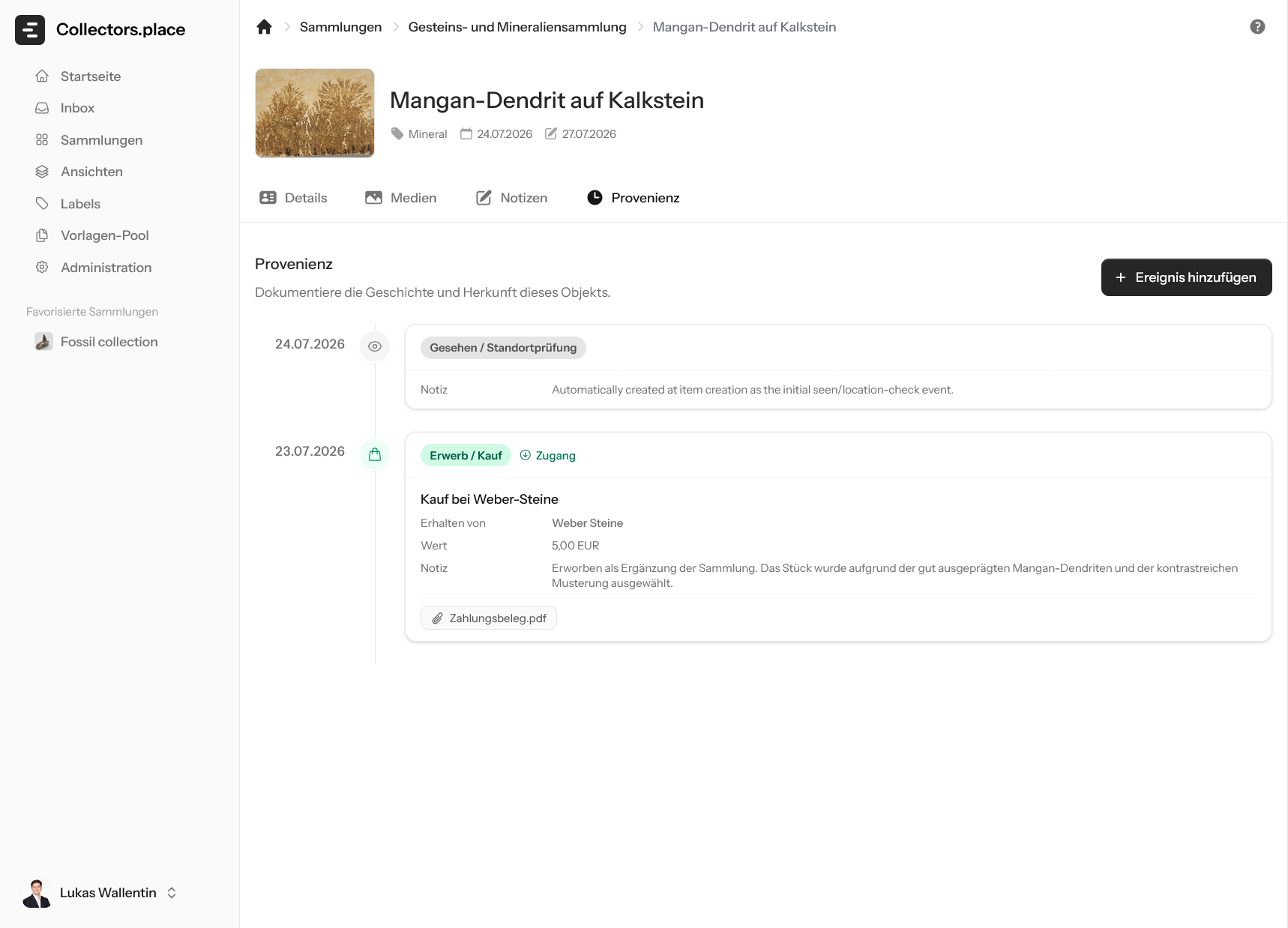
In the Attachments tab you can add supporting files, such as invoices, documents, or photos. That keeps the most important evidence directly attached to the event.
Supported events
Collectors.place supports the following provenance events:
Pre-collection
- ownership_history - Ownership history before the item entered the collection, for example previous owners or transfers.
Inbound
- acquisition - The item entered the collection, for example through purchase, gift, inheritance, or exchange.
- find - The item was found, for example during an excavation, discovery, or recovery.
In Collection
- inventory - Inventory or stocktaking.
- exhibition - The item was shown in an exhibition.
- loan_out - The item was loaned out to another party.
- publication - The item was mentioned or shown in a publication.
- valuation - The item was valued or appraised.
- expertise - An expert opinion or specialist assessment was created.
- legal_cert - A legal or official certificate was documented.
- scientific_study - The item was scientifically studied.
- damage - Damage was recorded.
- loss - The item was recorded as lost or not recoverable.
Accompanying measures
- preparation - Preparation work for exhibition, transport, or further treatment.
- cleaning - Cleaning of the item.
- conservation - Preventive conservation work to preserve the item.
- restoration - Restoration work on the item.
- repair - Technical repair or maintenance.
Outbound
- exit - The item leaves the collection, for example through sale, donation, exchange, or a similar transfer.
Closing events with a duration
Some events run over a period of time, for example exhibitions, loans, cleaning, restoration, or scientific studies.
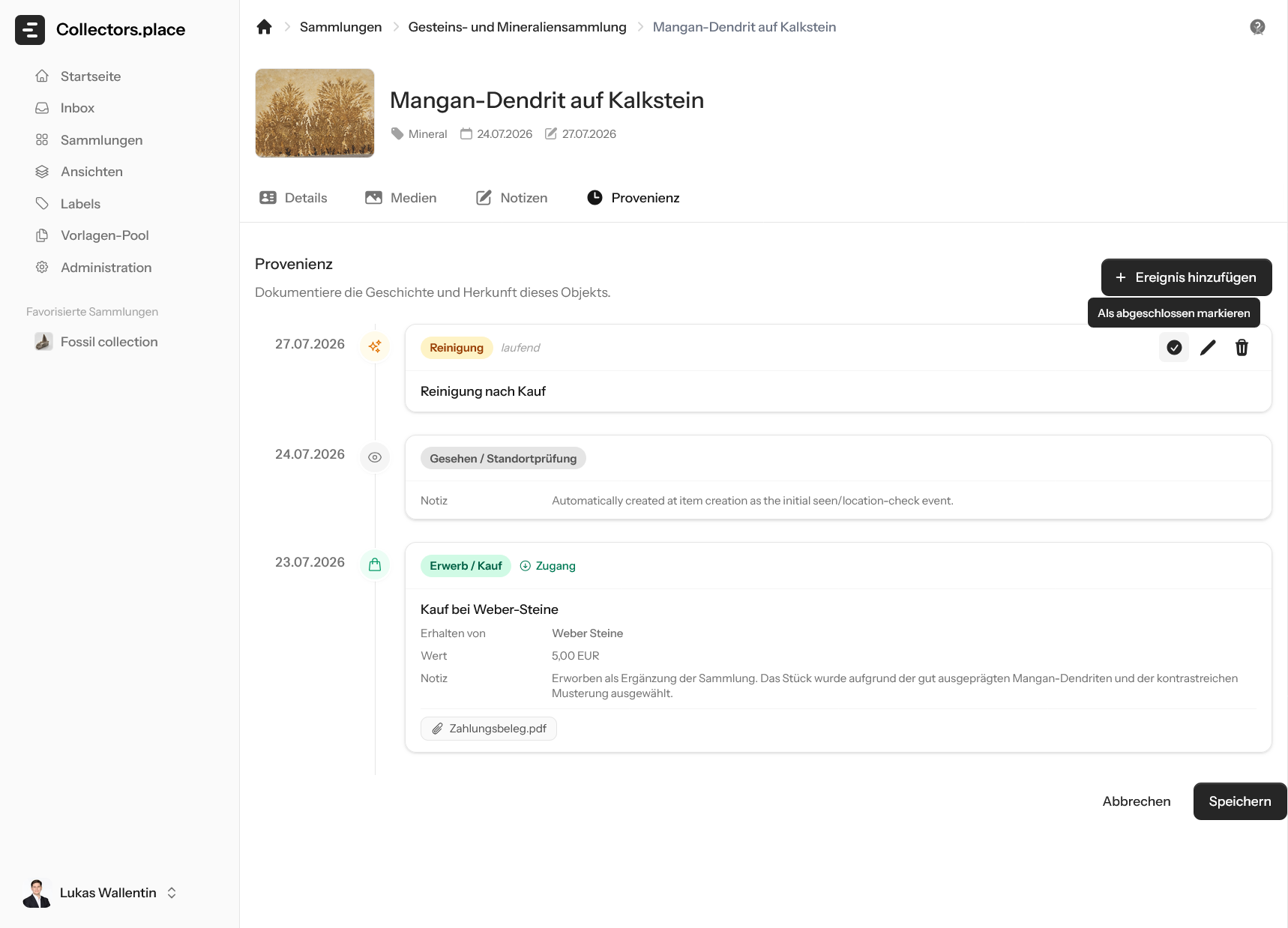
These entries stay open until you complete them. At that point you add the end date and can store a short completion note.
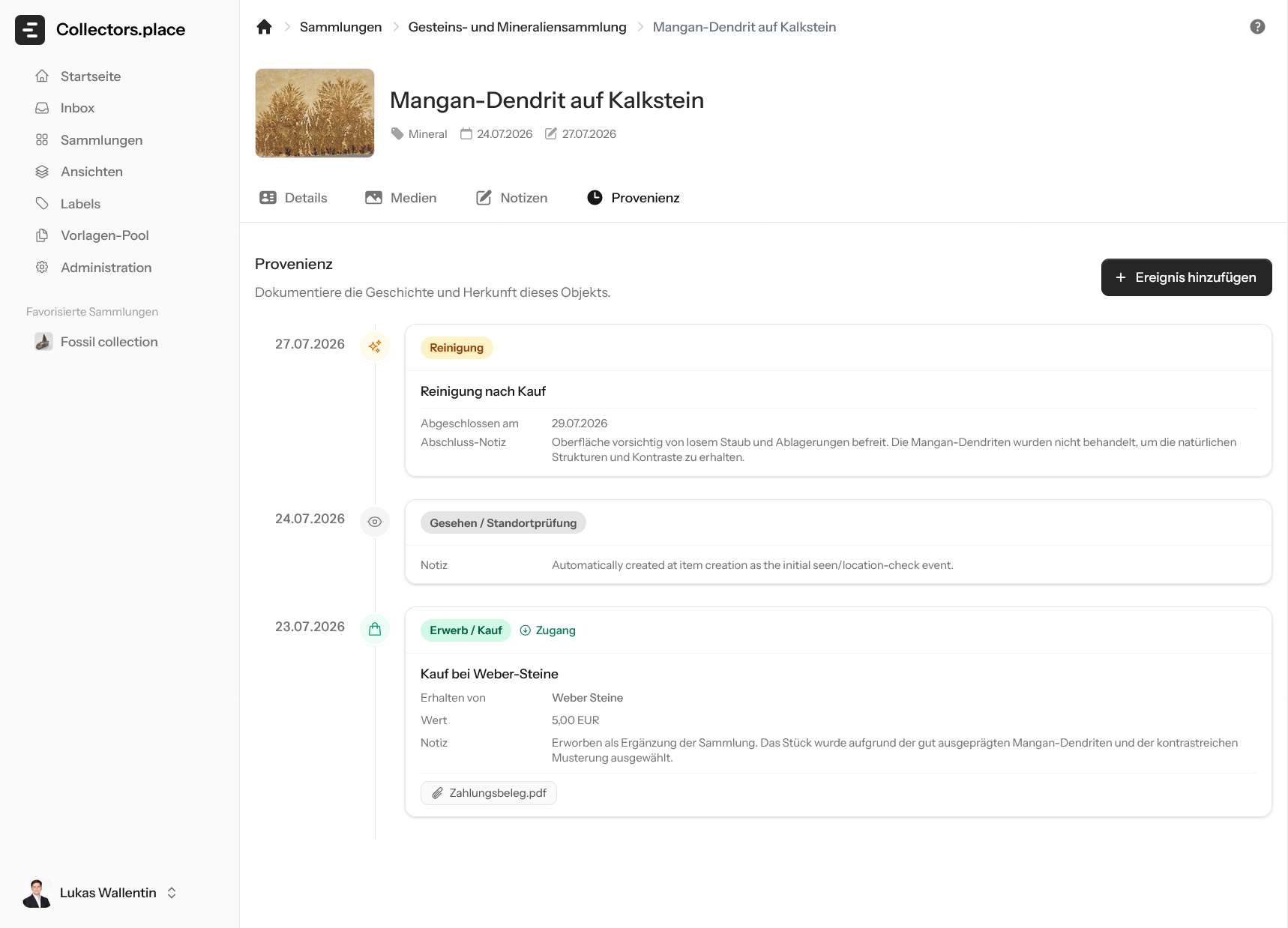
In the completion dialog, enter the actual end date and briefly document what happened at the end. After that, the entry appears as completed in the timeline.
Key takeaways
When you maintain provenance, focus on four things:
- add events in the correct order
- fill in the details that match the event type
- attach evidence and notes directly to the event
- complete ongoing events cleanly
That gives every item a clear and traceable history.