Manage Views
Views are saved overviews across multiple collections. They let you prepare exactly the list you need, for example all ammonites from all collections in one shared view.
Because you can filter not only by collection, but across all attributes, views are very flexible. That makes them useful for analysis, comparison, and preparation work across both collectibles and info items.
Empty overview
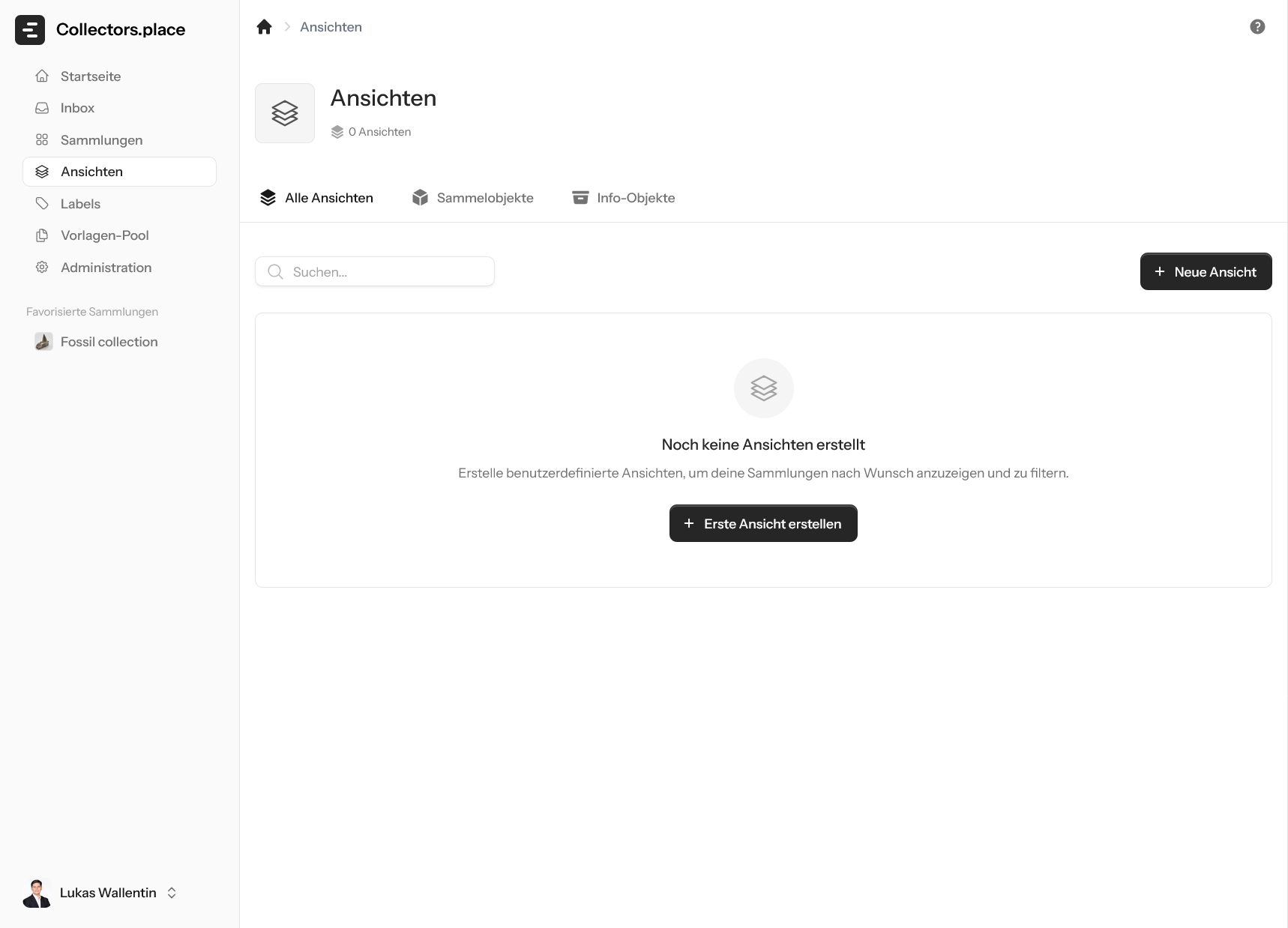
The views page starts empty. From here you create a new view and later confirm which collections should be included.
Setting up the view
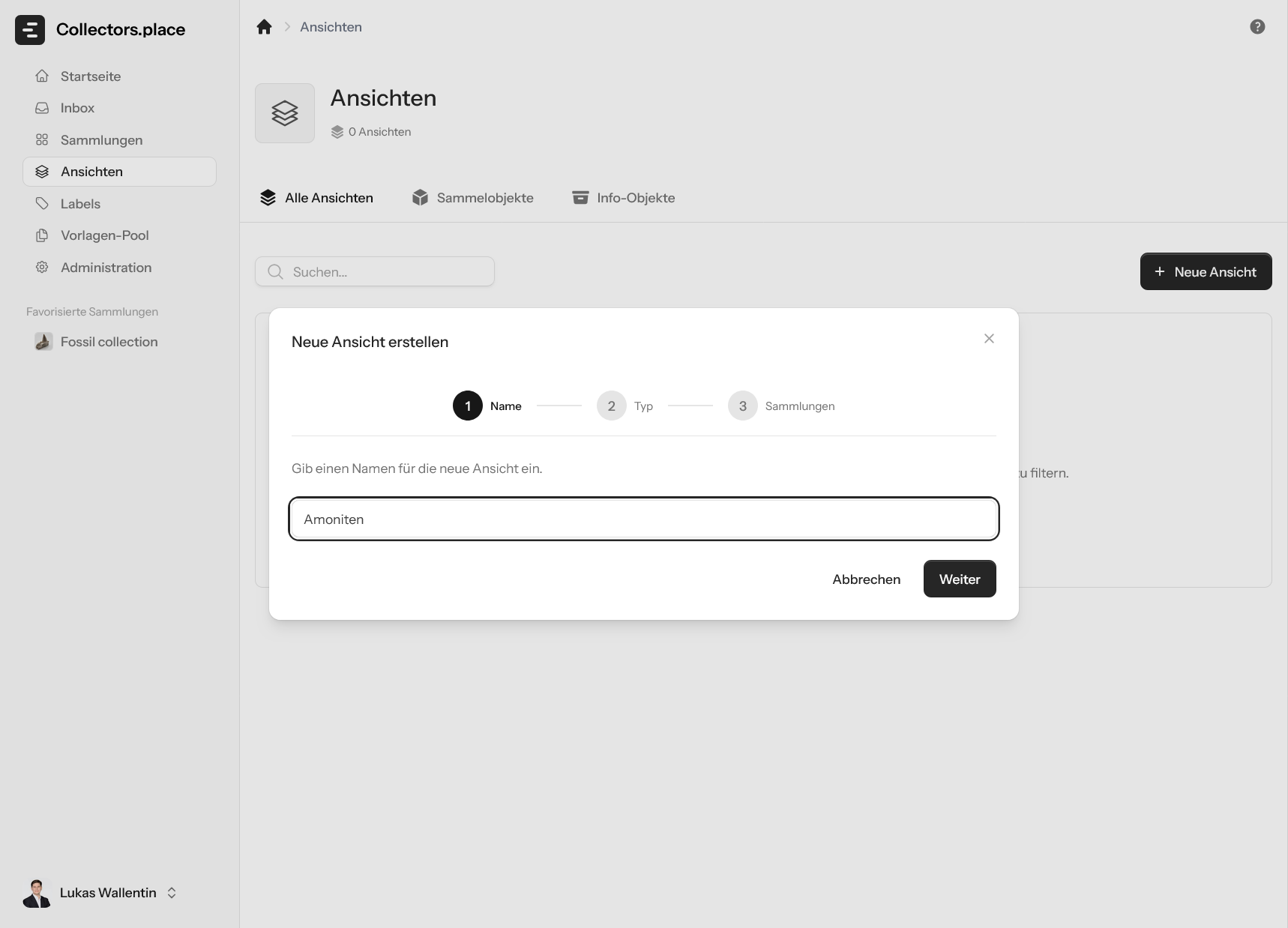
First, give the view a name. In the example, the view is called Ammonites so the purpose stays immediately clear.
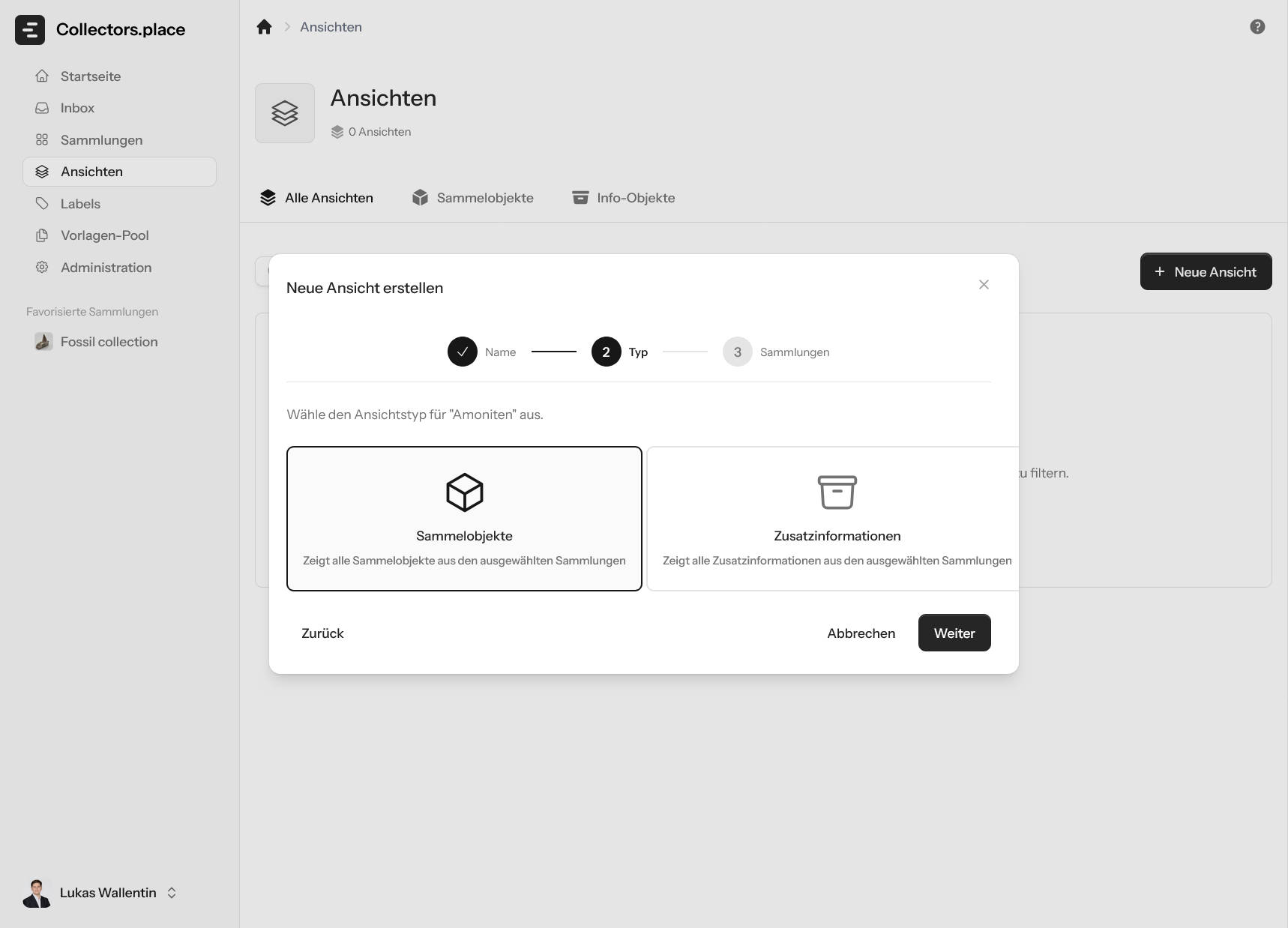
Then choose the view type. Depending on the use case, you work with Collectibles or Info Items.
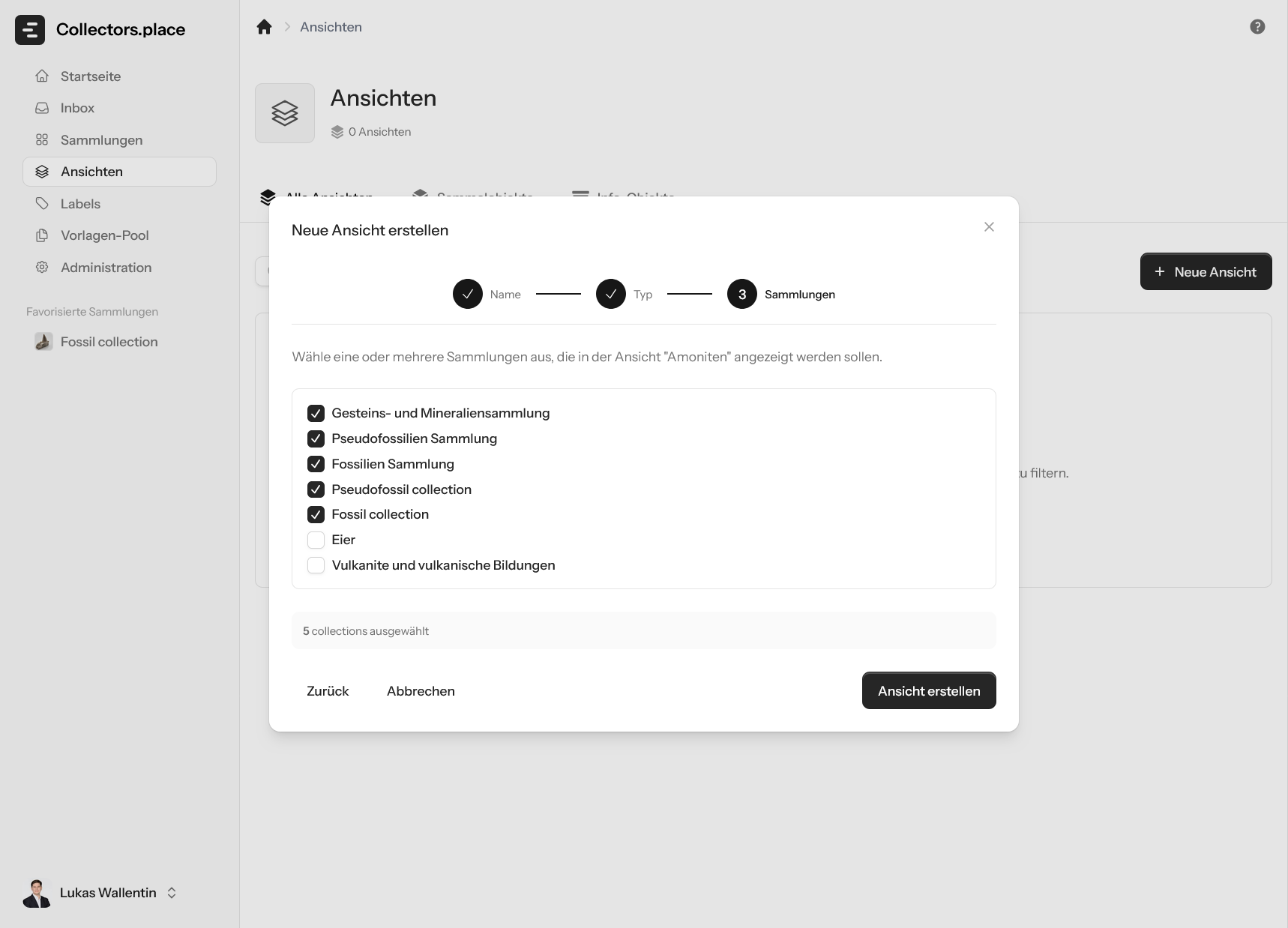
Then choose the collections that should be combined in the view. That allows one view to show content from several collections at once.
Using the finished view
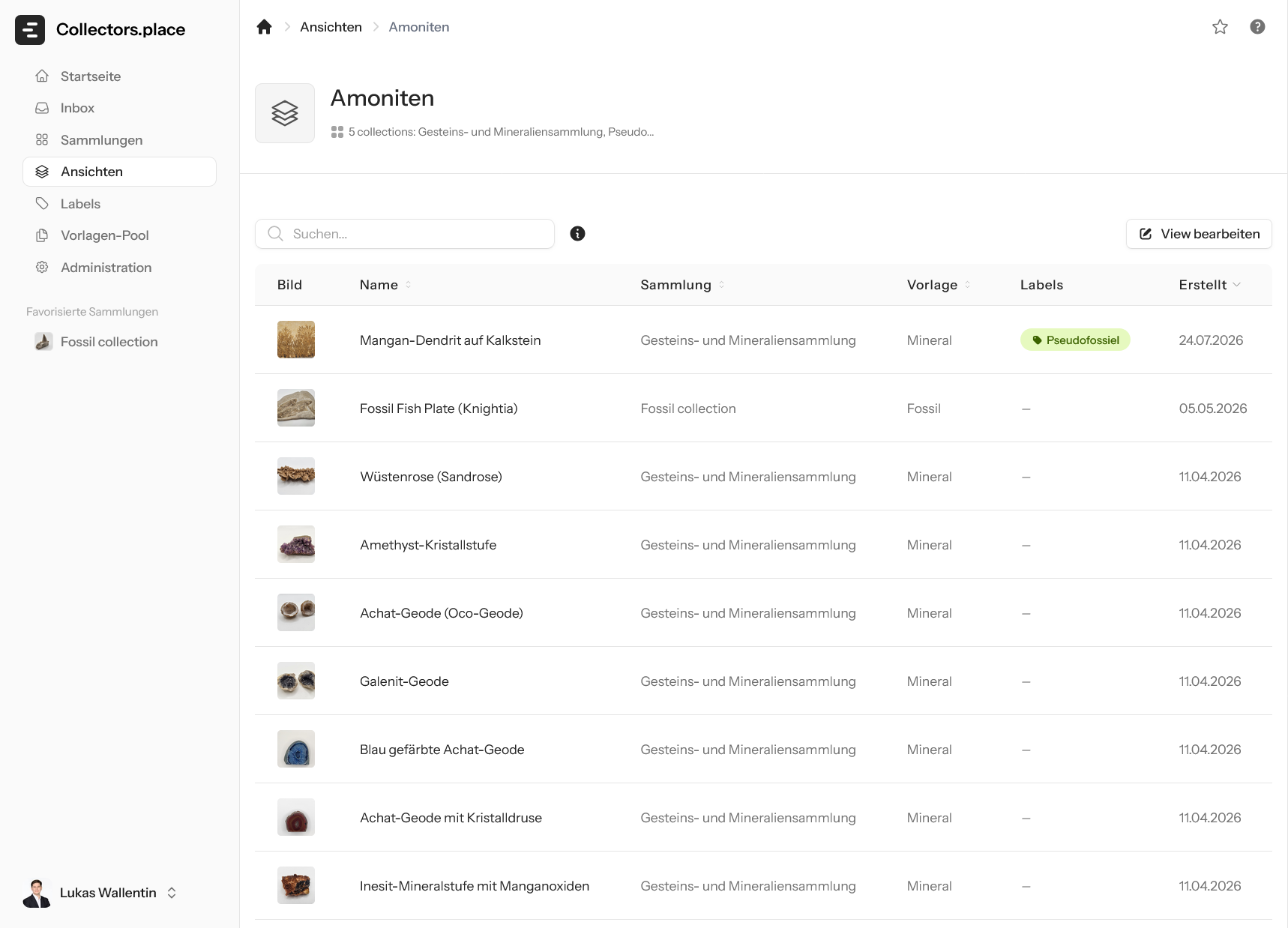
After saving, the view shows the matching items from the selected collections in a shared list. This is the main advantage: you can see related content together without opening every collection separately.
Adjusting the view
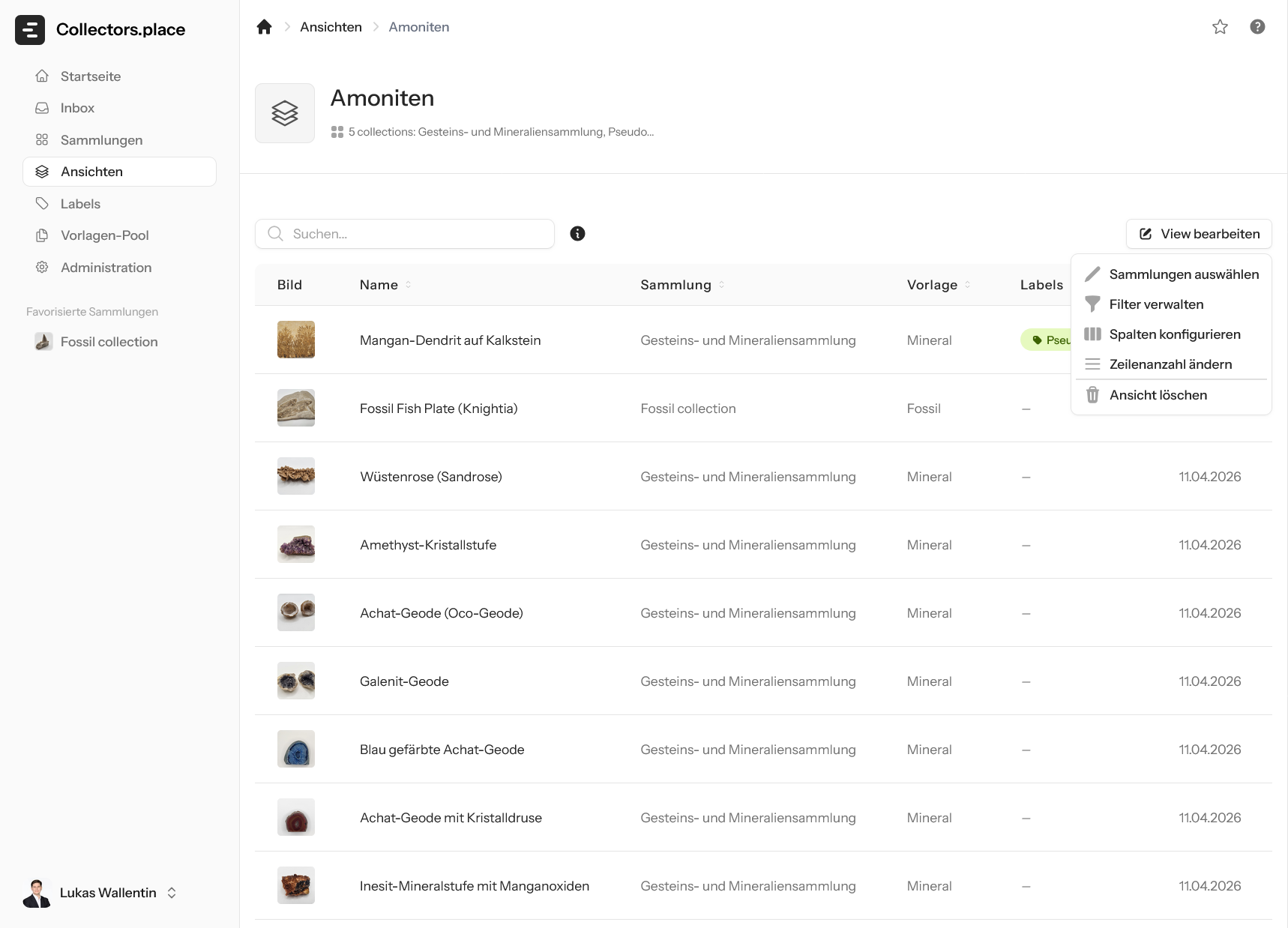
Use the menu in the top right to refine the view at any time. There you can change the collections, manage filters, configure columns, adjust the row count, or delete the view.
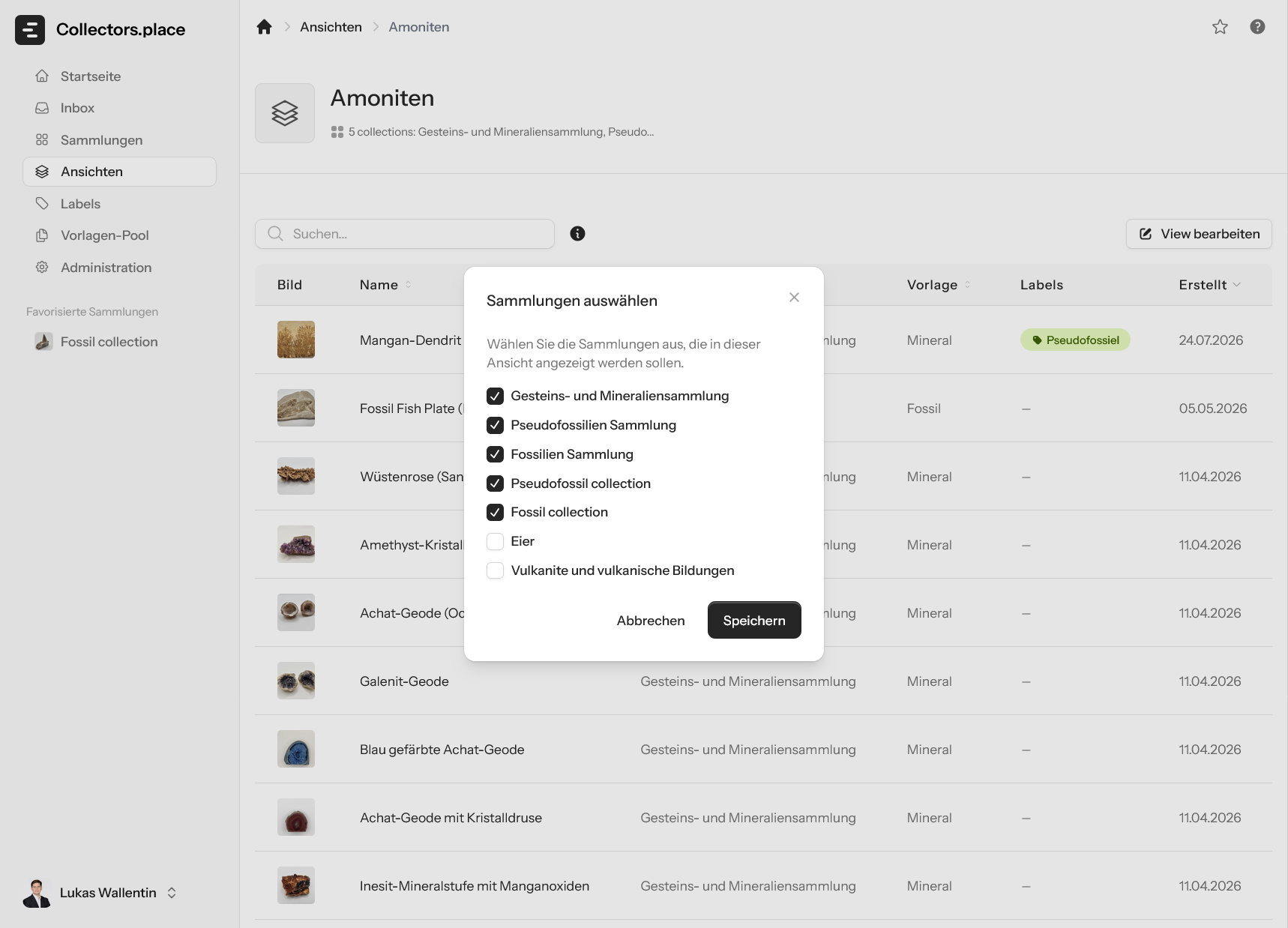
If your focus changes, you can later swap or expand the included collections. That keeps the view flexible.
Managing filters
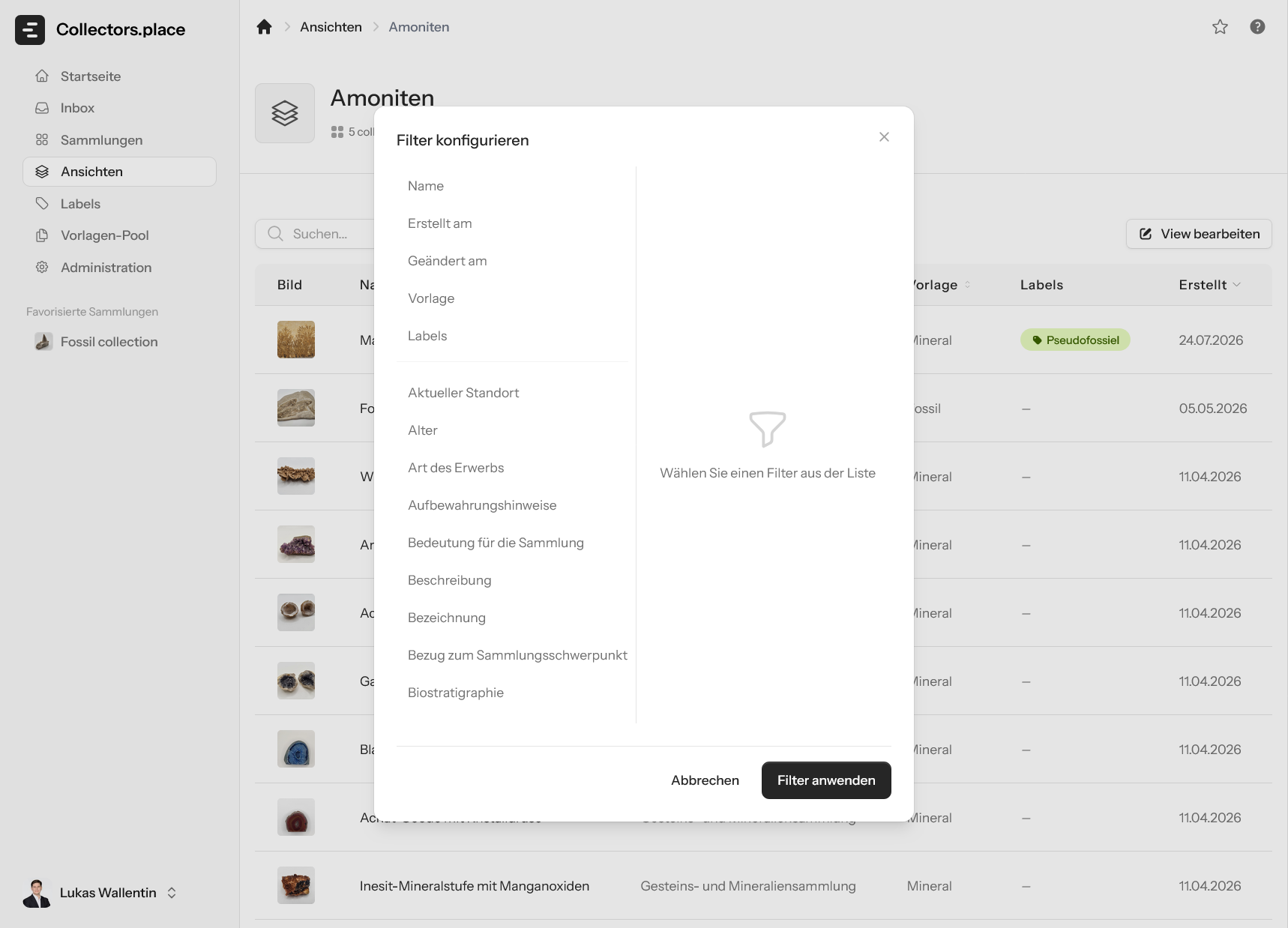
In the filter area, define which criteria should apply to the view. The list shows which filters already exist and which fields you can still add.
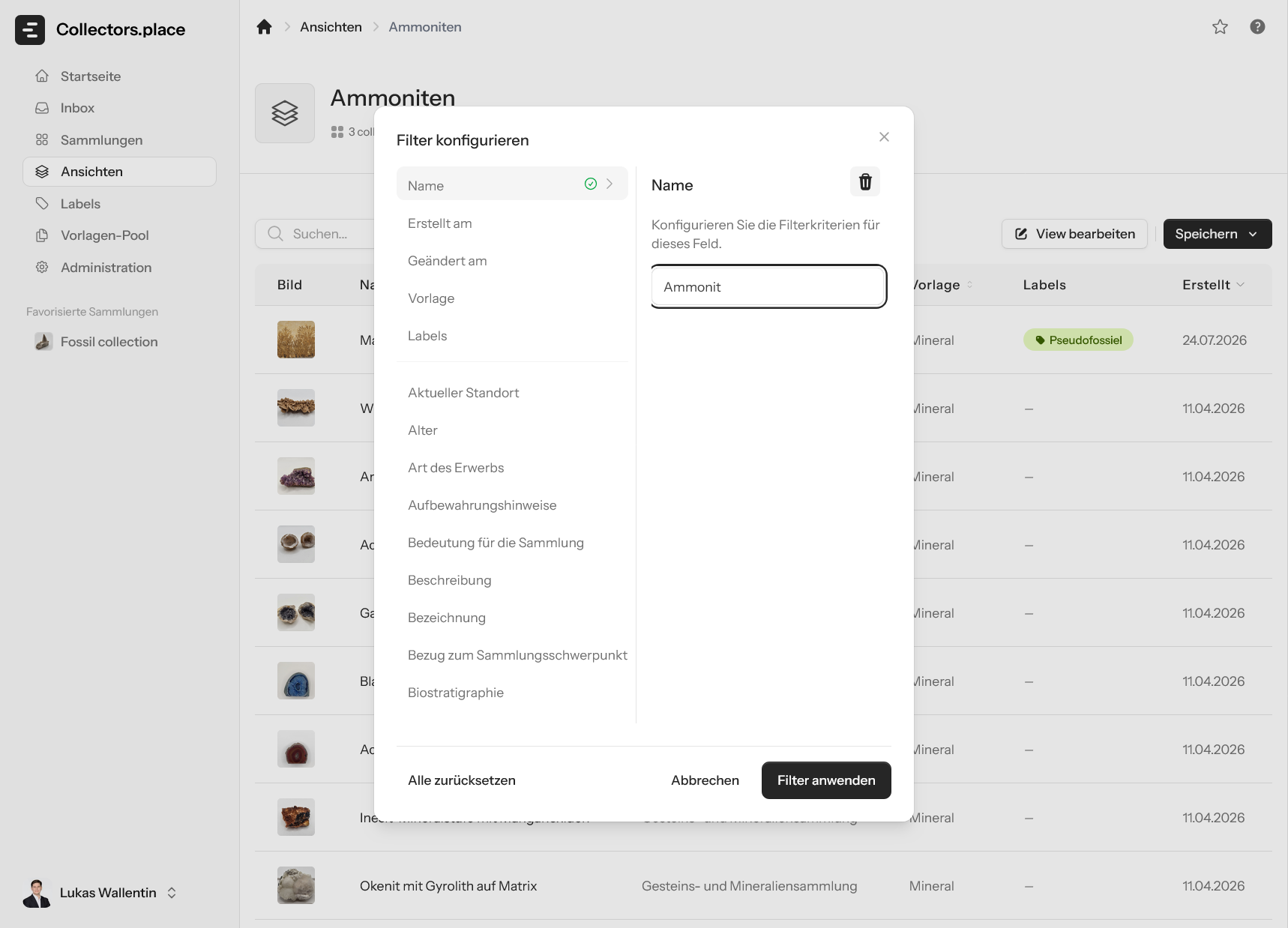
When configuring a filter, choose the field on the left and the matching condition on the right. This works not only for standard fields, but across the attributes of the items. That lets you narrow the view very precisely to your current question.
Checking the result
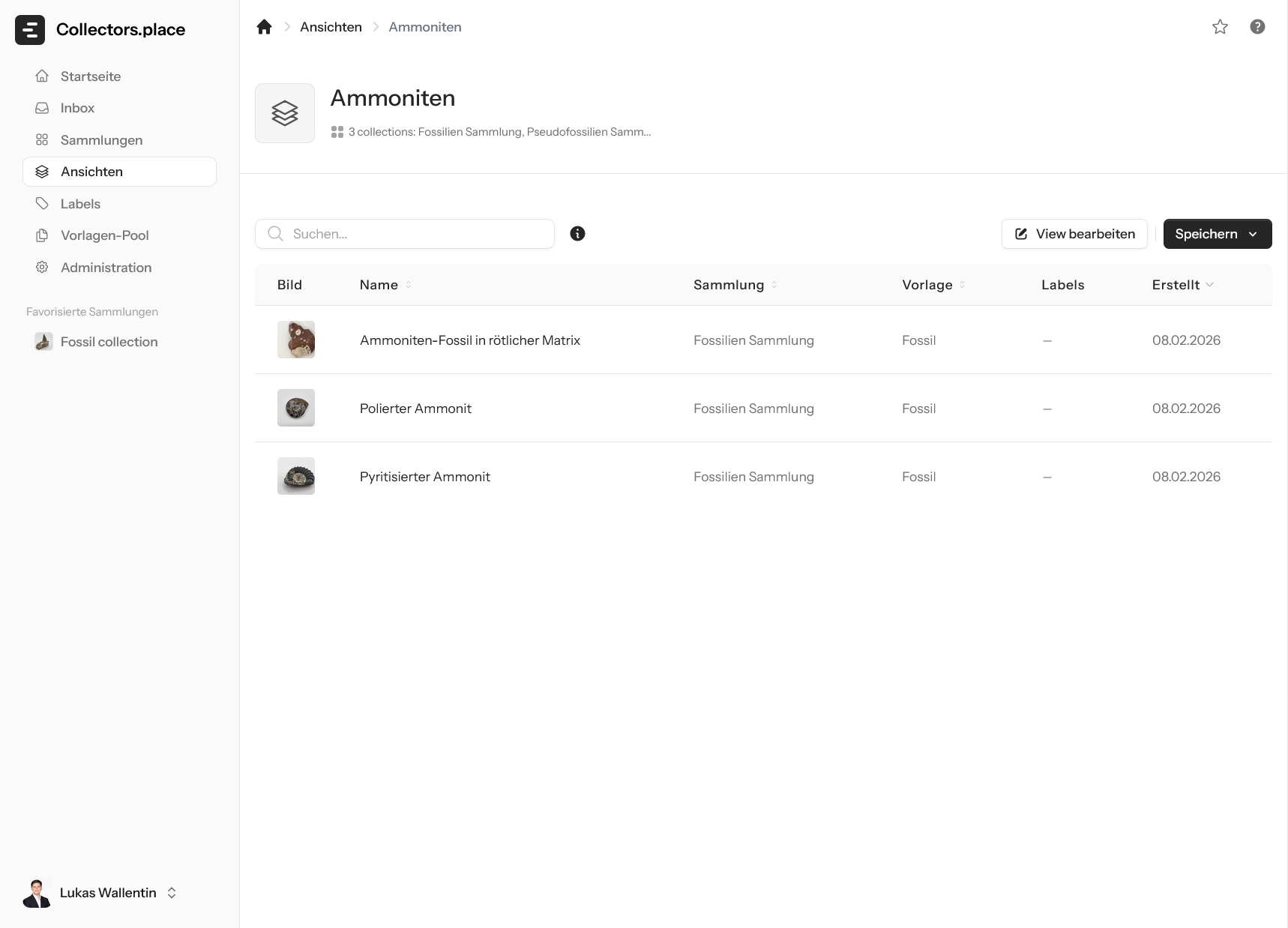
The result shows only the items that match your filter combination. That is how you can, for example, collect all ammonites from several collections without having to gather the data manually.
Adjusting columns
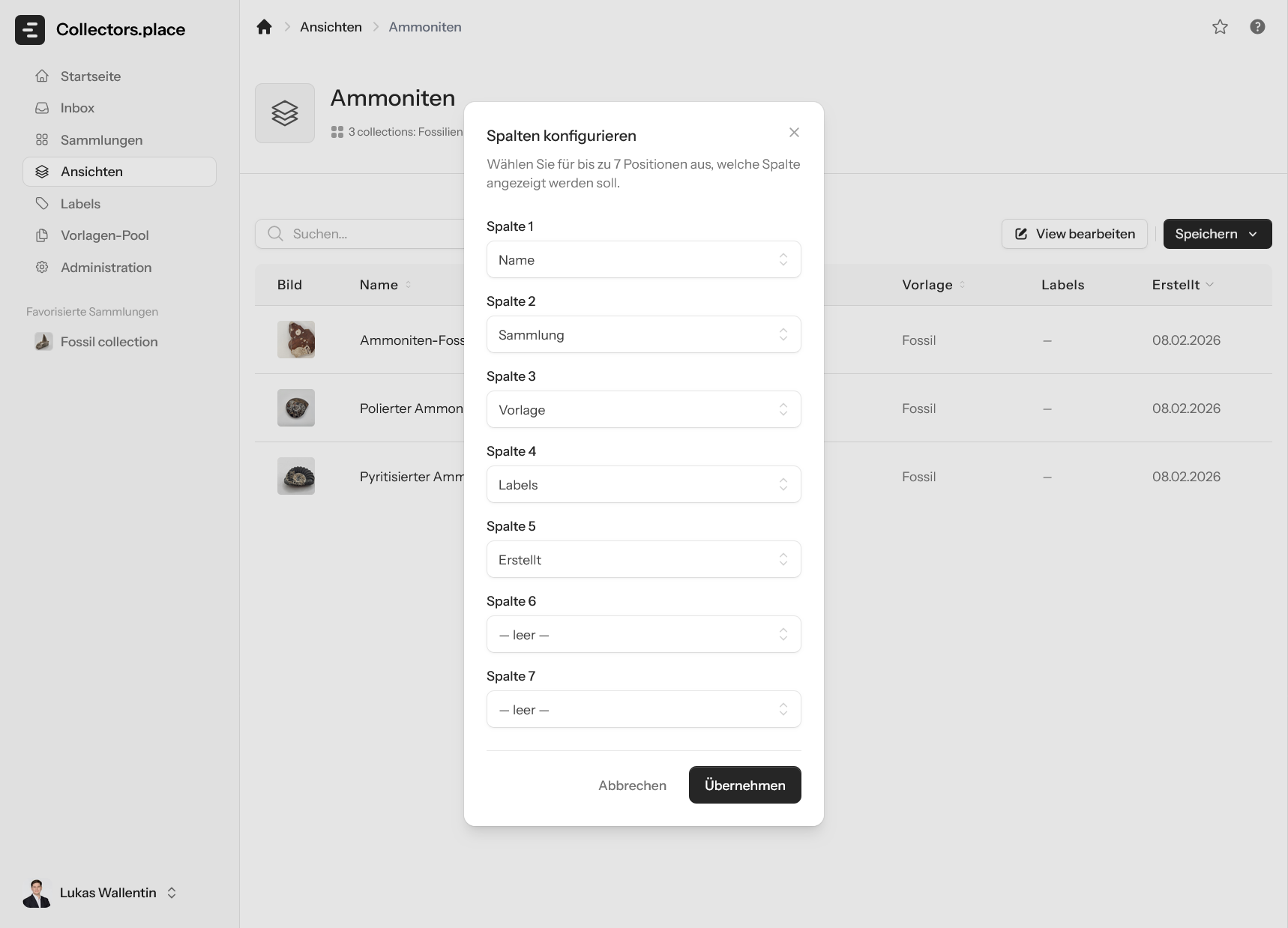
Use the column picker to decide which information is shown in the list. A view can stay compact for quick work or show more detail for deeper analysis.
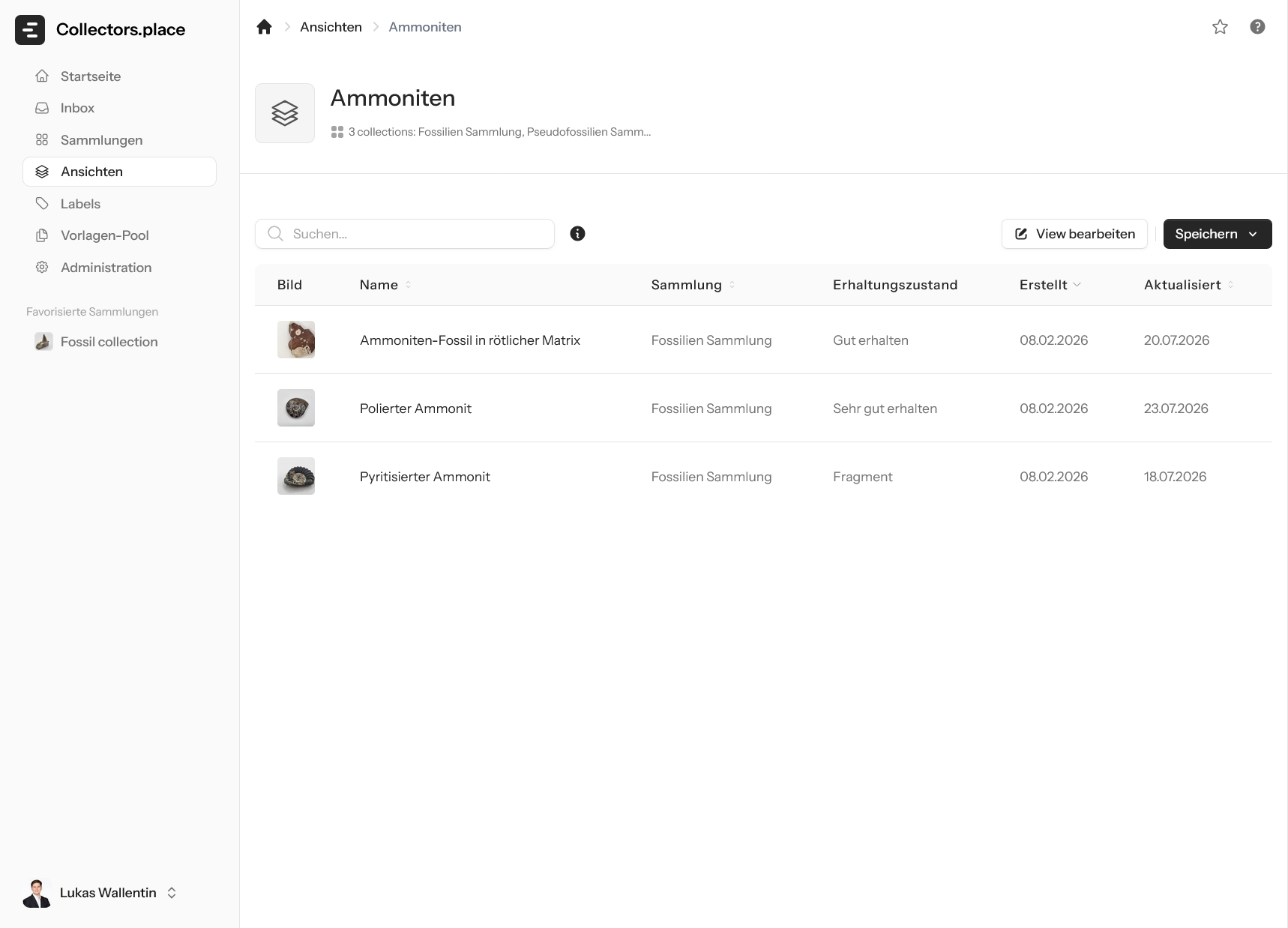
After changing the columns, the table updates immediately. That is useful when different tasks require different information, such as name, collection, condition, or updated date.
Row count and saving
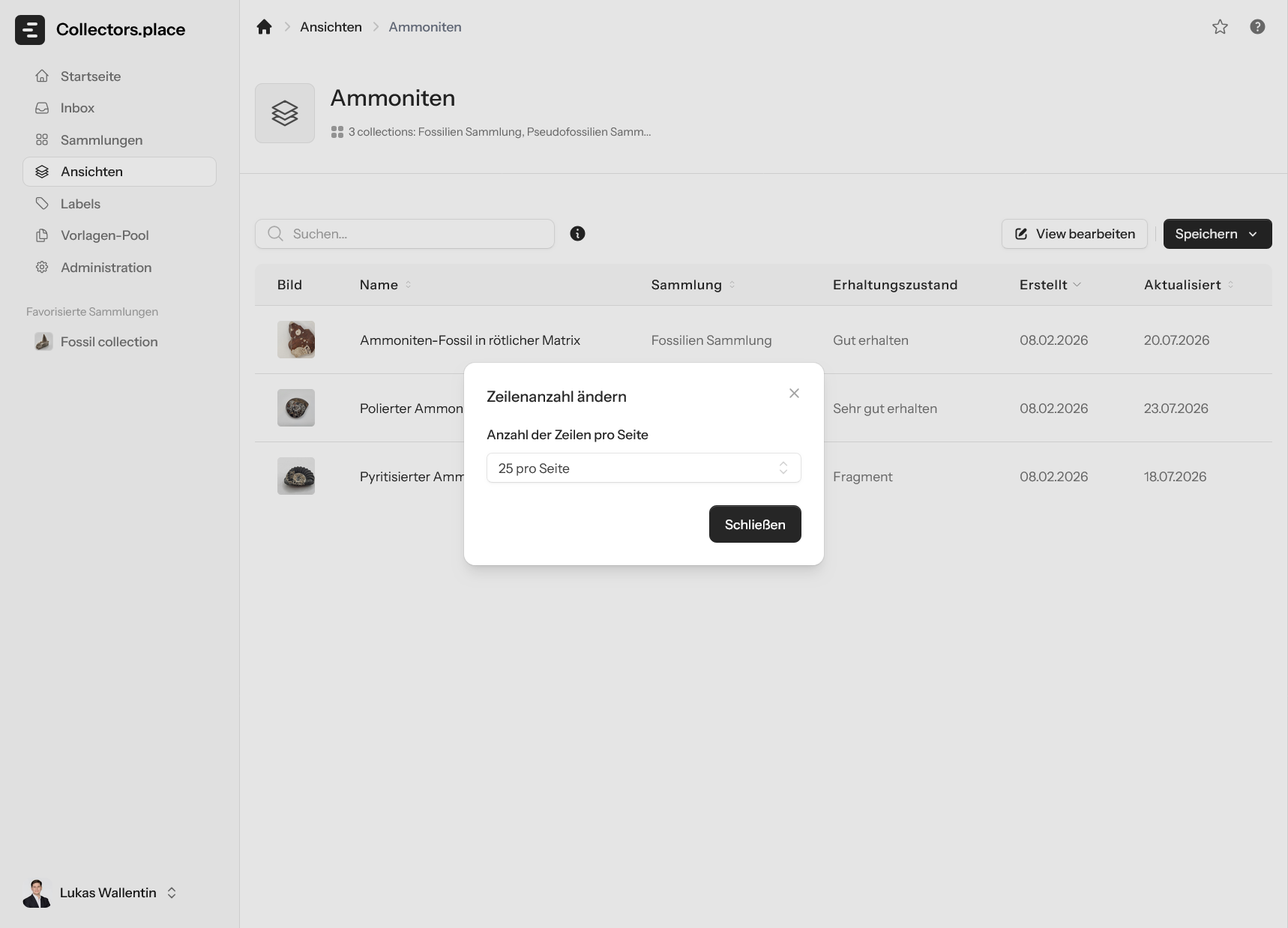
Use the row count to decide how many entries should appear per page. That makes the view work for both short checklists and longer working lists.
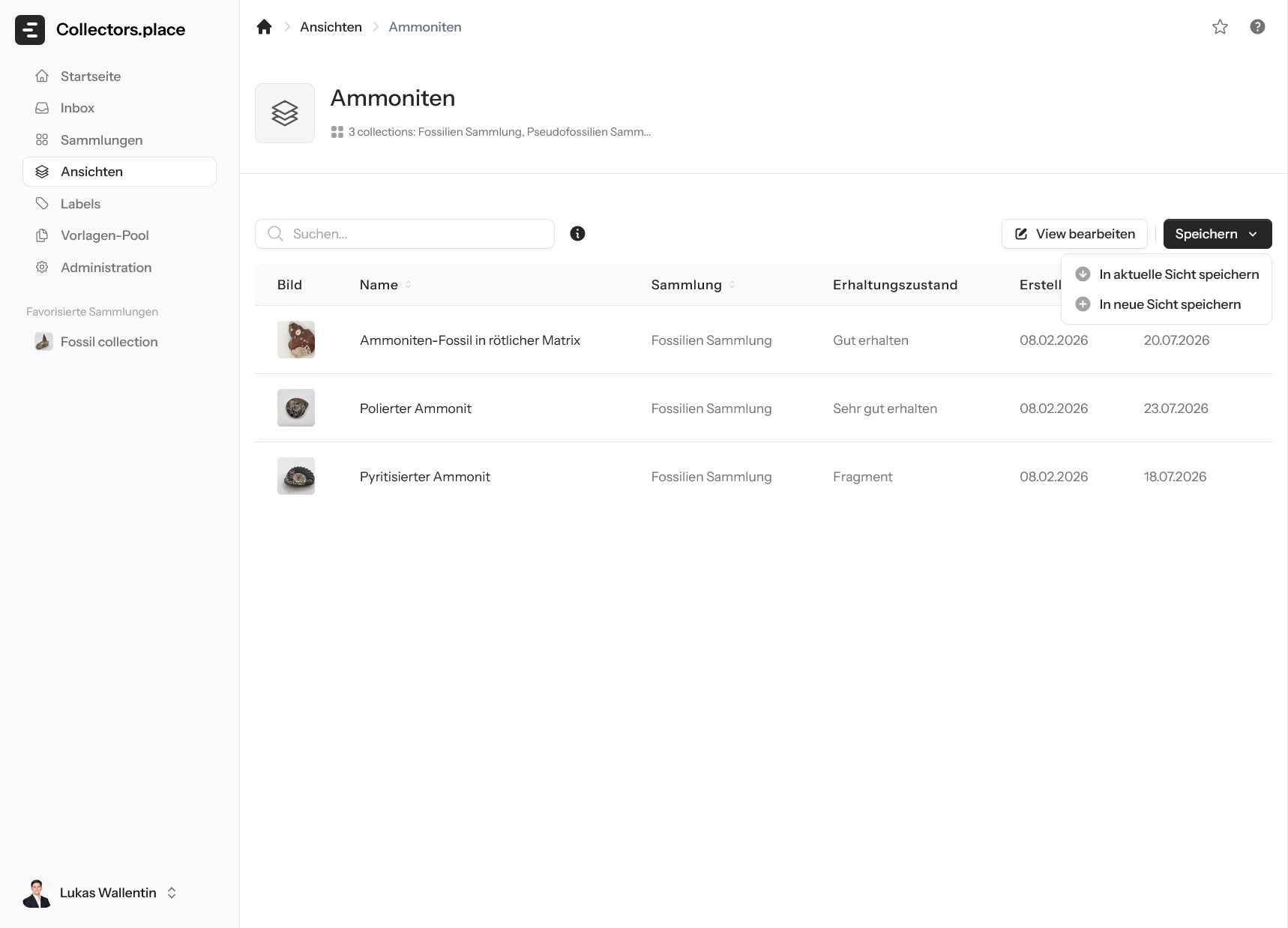
Finally, save the changes either to the current view or as a new view. That makes it easy to keep multiple variants for different tasks.
Key takeaways
When working with views, focus on four things:
- combine collections in a sensible way
- filter across attributes rather than only by collection
- adapt columns and row count to the task
- save useful views for later work
That gives you a flexible overview across multiple collections.